Terraforming Orchestrator on AWS
Pre-Terraform
First, copy the contents of orc8r/cloud/deploy/terraform into a source-controlled directory that you control. This directory contains bare-bones Terraform scripts to bring up the raw AWS resources needed for Orchestrator. We highly recommend familiarizing yourself with Terraform before continuing - the rest of this guide will assume some familiarity with both Terraform and the AWS CLI.
Adjust the example Terraform files as you see fit. If you aren't familiar with Terraform yet, we recommend not changing anything here for now.
Next cd to where you've copied the contents of the Terraform directory and
$ terraform init

Initializing modules...
Initializing the backend...
Initializing provider plugins...
Terraform has been successfully initialized!
In the AWS console, create or import a new keypair to enable SSH access to the worker nodes of the EKS cluster. This can be found in the EC2 dashboard under "Key Pairs". If you're creating a new key pair, make sure not to lose the private key, you won't be able to recover it from AWS.
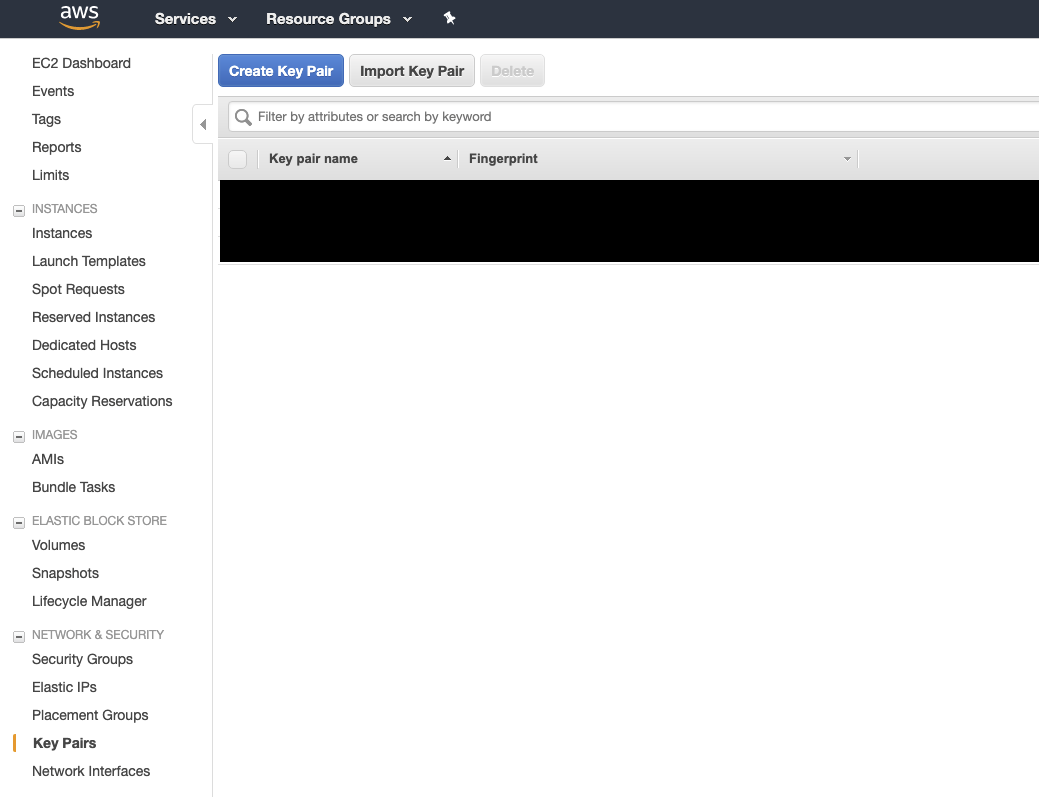
Next, create a vars.tfvars file in your directory, add it to your source
control's .ignore, and specify your desired RDS password and the name of the
keypair that you imported or created in the above step:
$ cat vars.tfvars
db_password = "foobar"
nms_db_password = "foobar"
key_name = "my_key"
Check the README under the original terraform directory for additional variables that you can configure.
Now you're ready to move on:
Applying Terraform
Execute your standard Terraform workflow and wait for the resources to finish provisioning. If you are terraforming on an AWS account that's already being used for other purposes, carefully examine Terraform's planned execution before continuing.
Note: There is a known issue with the module we use to provision the EKS
cluster (see https://github.com/facebookincubator/magma/issues/793).
If you see a stacktrace like the following, simply terraform apply again
and the stack provisioning should succeed
Error: Provider produced inconsistent final plan

When expanding the plan for module.eks.aws_autoscaling_group.workers[0] to
include new values learned so far during apply, provider "aws" produced an
invalid new value for .initial_lifecycle_hook: planned set element
cty.ObjectVal(map[string]cty.Value{"default_result":cty.UnknownVal(cty.String),
"heartbeat_timeout":cty.UnknownVal(cty.Number),
"lifecycle_transition":cty.UnknownVal(cty.String),
"name":cty.UnknownVal(cty.String),
"notification_metadata":cty.UnknownVal(cty.String),
"notification_target_arn":cty.UnknownVal(cty.String),
"role_arn":cty.UnknownVal(cty.String)}) does not correlate with any element in
actual.
Once terraform apply -var-file=vars.tfvars finishes, there is some additional
manual setup to perform before our EKS cluster is ready to deploy onto.
First find the public IP address of the metrics instance using
export METRICS_IP=$(aws ec2 describe-instances --filters Name=tag:orc8r-node-type,Values=orc8r-prometheus-node --query 'Reservations[*].Instances[0].PublicIpAddress' --output text)
echo $METRICS_IP
The Prometheus config manager application expects some configuration files to
be seeded in the EBS config volume (don't forget to use the correct private
key in scp with the -i flag):
scp -r config_defaults ec2-user@$METRICS_IP:~
ssh ec2-user@$METRICS_IP
[ec2-user@<metrics-ip> ~]$ sudo cp -r config_defaults/. /configs/prometheus
Now you've got your infra set up, we can move on to configuring the EKS cluster.
Assuming you don't have an existing Kubeconfig file in ~/.kube/config, run
the following. If you do, you can use the KUBECONFIG environment variable
and kubeconfig view --flatten to concatenate the kubeconfig file that
Terraform created with your existing kubeconfig.
cp ./kubeconfig_orc8r ~/.kube/config
Now we can set up access to the EKS cluster:
kubectl apply -f config-map-aws-auth_orc8r.yaml
At this point, our cluster is ready for deploying the application onto.