Equipment
Gateway Dashboard
Gateway Overview
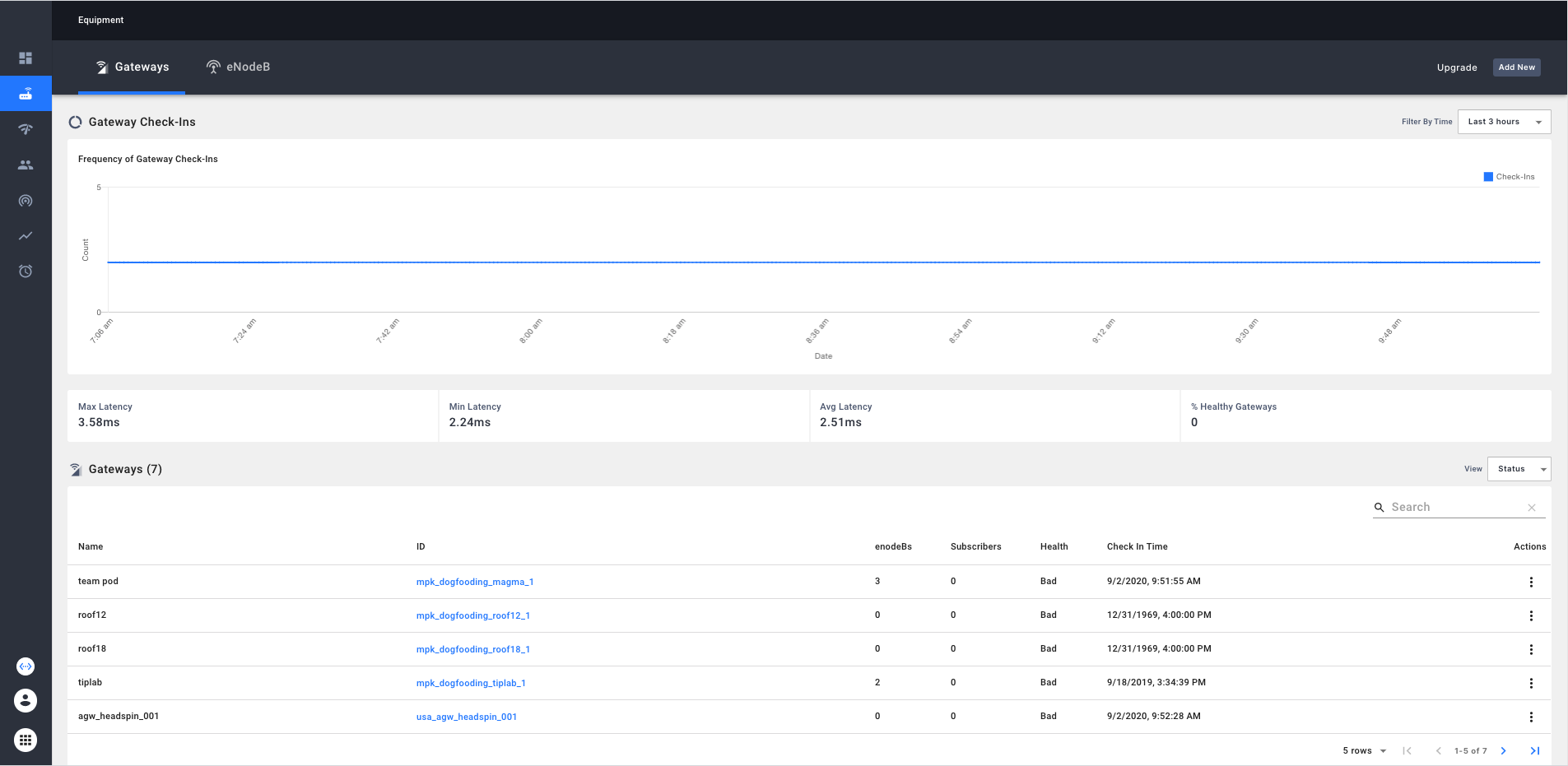
- Chart to display gateway checkins. Using a time range selector, the gateway checkin chart can be filtered to view the frequency of checkins over the last 3 hours, 6 hours, 12 hours, 24 hours, 7 days, 14 days and 30 days.
- Gateway specific KPIs including Max, Min and Average latency of the pings to a specific host(8.8.8.8) and % of healthy gateways.
- Gateway overview table with a selector to view either status or upgrade view of the gateways in the network.
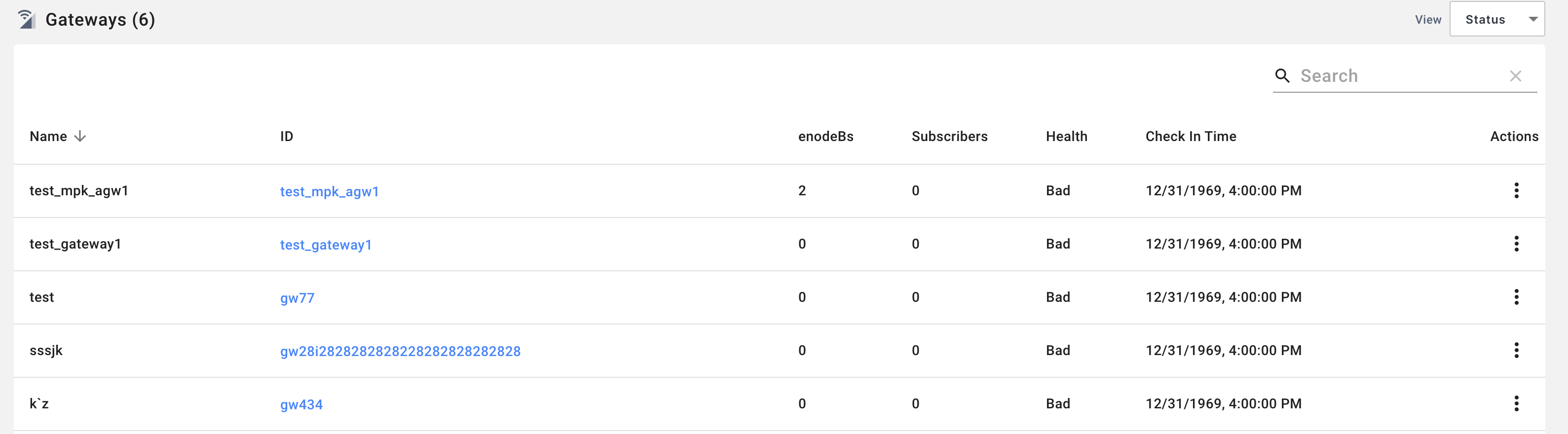
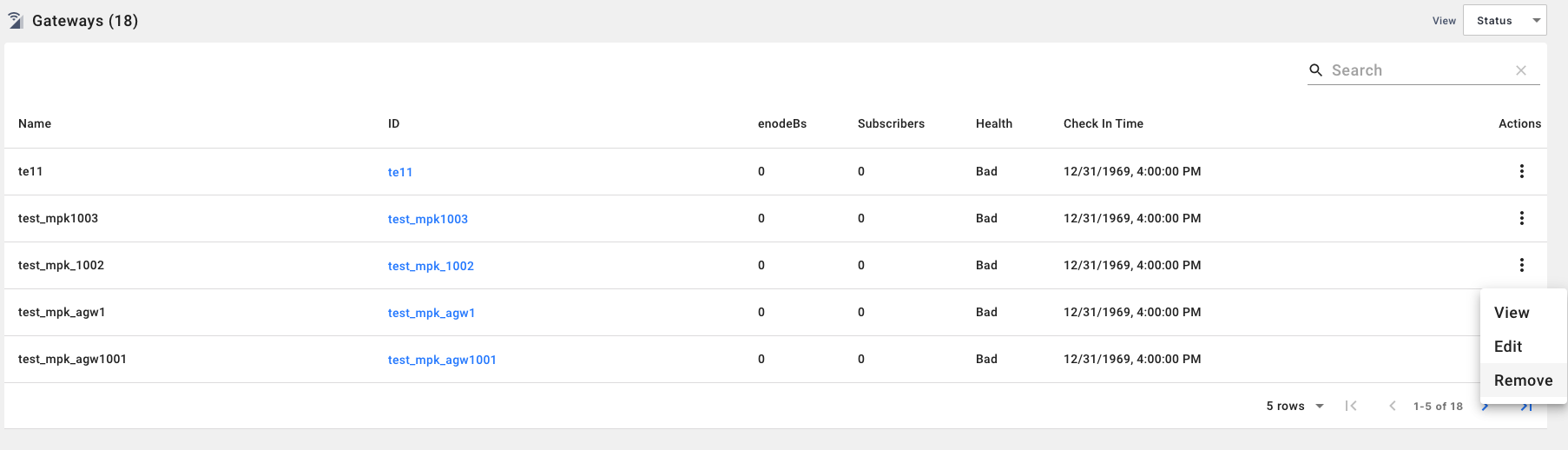
- Status table columns include (Name, ID, #eNodeBs, #subscribers, Health, Last checkin Time). The gateway ID link can be clicked to open the gateway detail page for a specific gateway. Each row comes with an action menu with options to view, edit and delete a gateway.
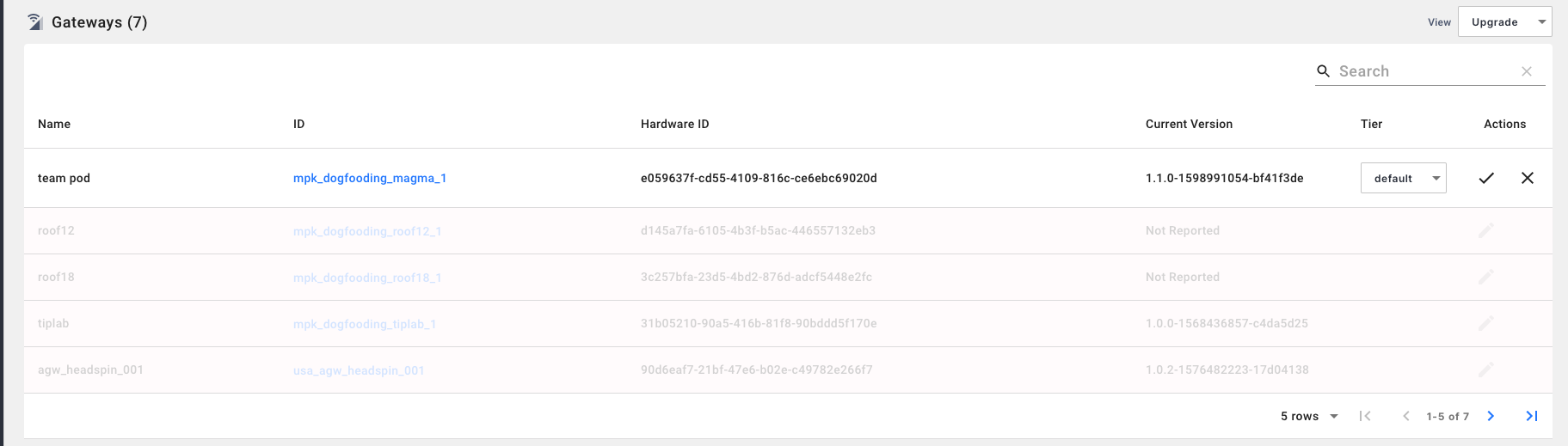
- Upgrade table columns include (Name, ID, Hardware ID, Current Version, Tier, and editable actions to modify the tier).
- Buttons to **add a new gateway **and to configure upgrade tiers.
Gateway detail
Each gateway detail page comprises of overview, events, logs, alerts and config sections. Additionally, the gateway detail page has a reboot button at the right top corner of the page.
Overview page
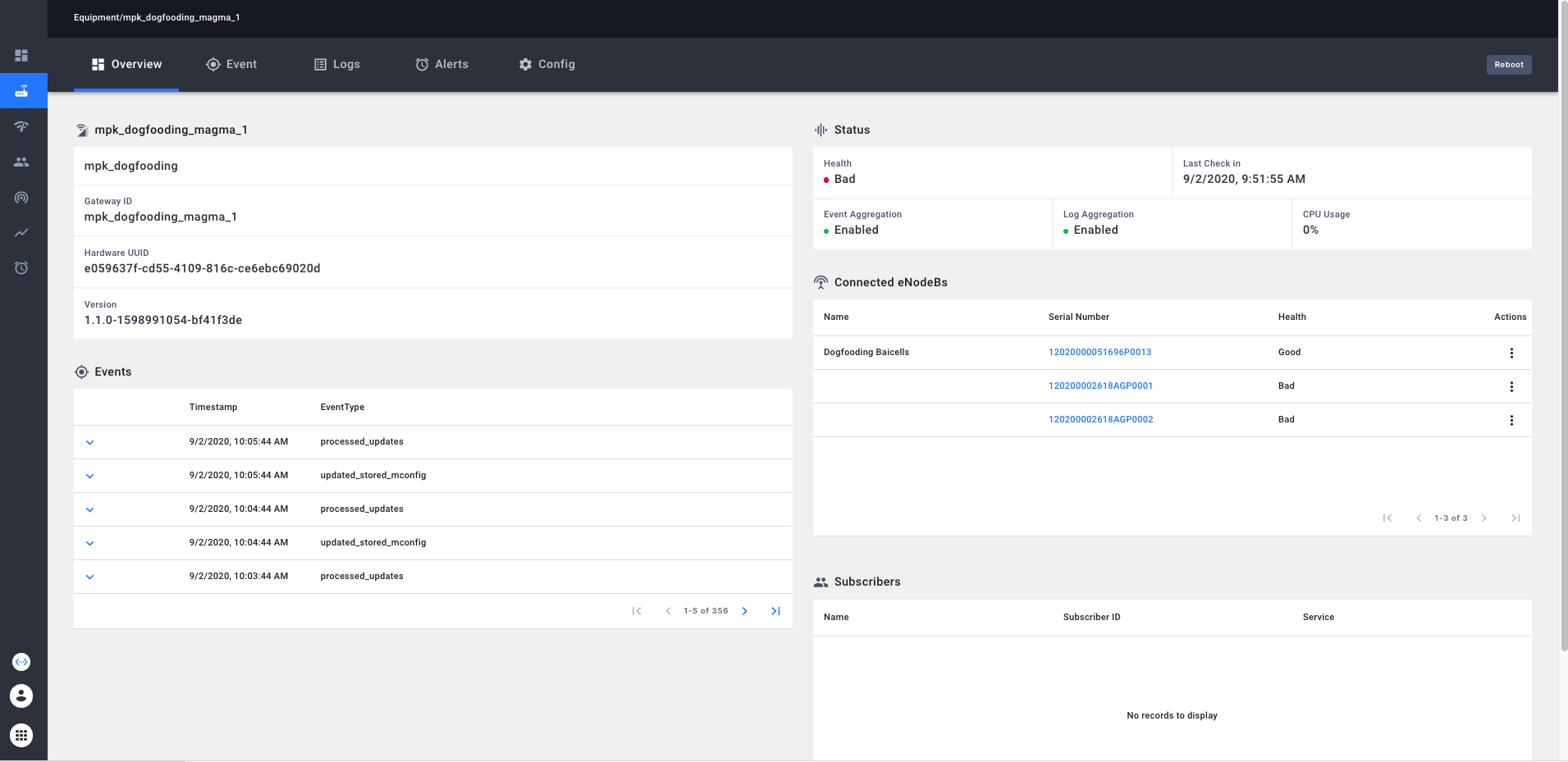
- Gateway specific information(name, gatewayID, hardwareID, version)
- Status(Health, last checkin time, CPU usage %, event aggregation and log aggregation configuration)
- Connected eNodeBs. List of eNodeBs connected to the specific gateway
- Connected Subscribers. List of subscribers connected to this specific gateway.
- Smaller version of Event Table consisting of events which occurred during the last 3 hours.
Events
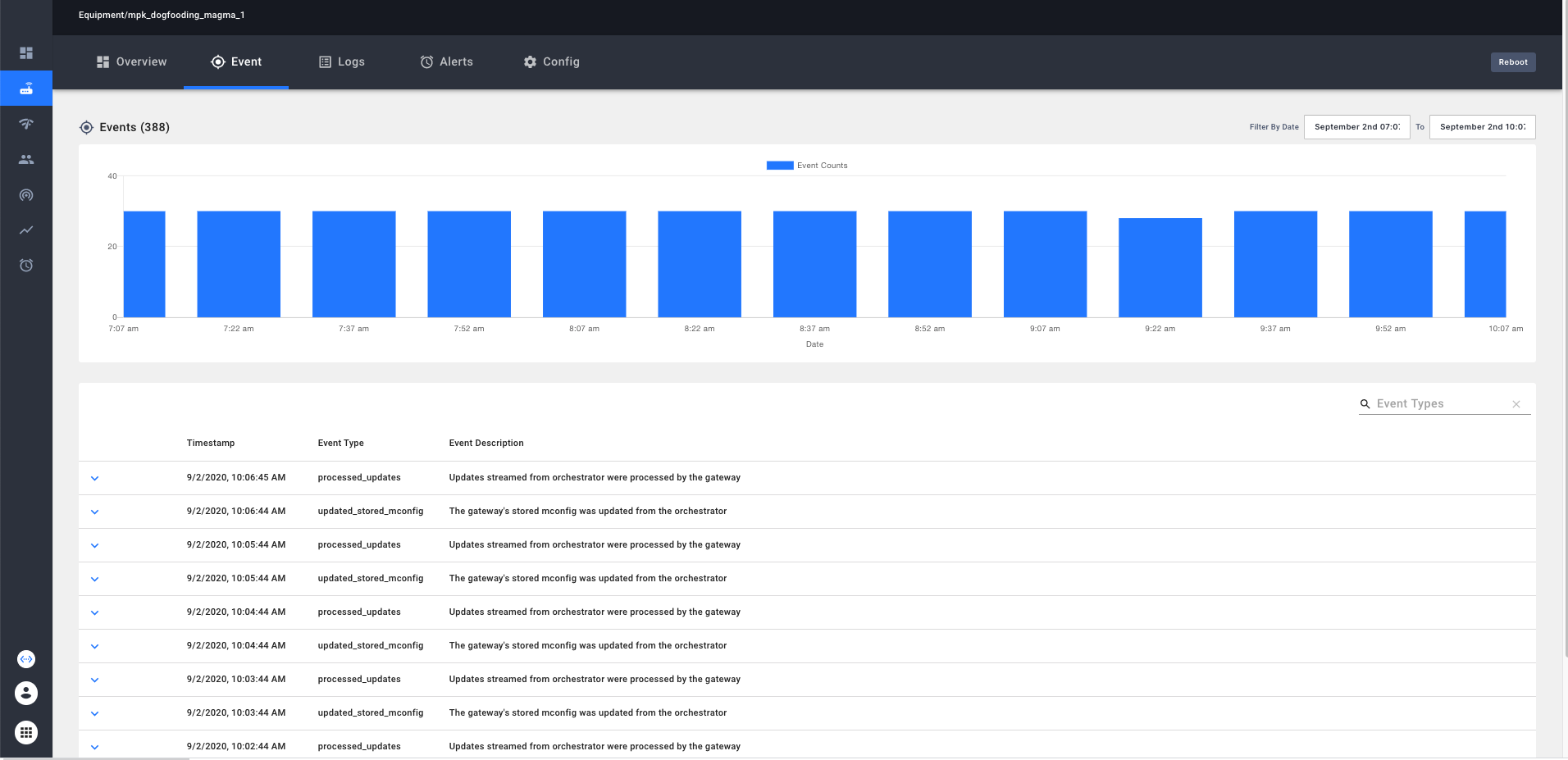
- Event chart displays the count of gateway specific events in a bar graph.
- Event table displays the time, event type and event description. It comes with a dropdown to provide a detailed event description. Additionally, it has a search button which can be used to filter specific event types.
- Event page comes with a datetime selector which can be used to filter event chart and event table within a selected time window.
Logs
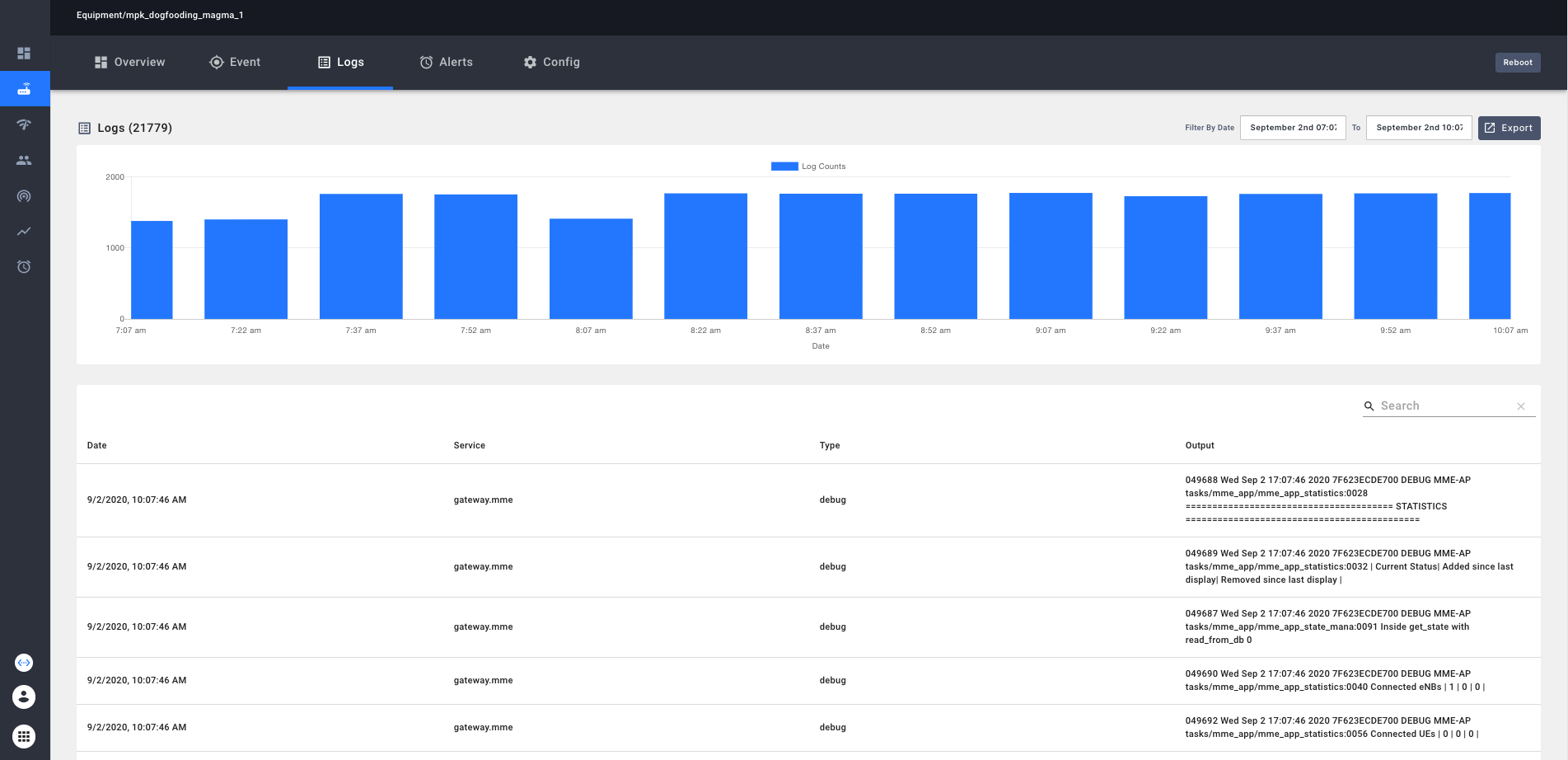
- Log chart displays the count of gateway log events in a bar graph.
- Log table displays the date, service, log type and log text. The log table comes with a search bar which can be used to search for arbitrary text within the logs. Regular expressions can also be used. For example, *001010000000001 can be used to filter all logs for a particular IMSI.
- Log page comes with a datetime selector which can be used to filter log chart and log table within a selected time window.
- Log page also comes with an export button that can be used to export all the logs within the particular time window, for a specific search query.
Alerts
- This page displays alerts tabbed by Critical, Major, Minor and Misc alerts filtered for that specific gateway.
Config page
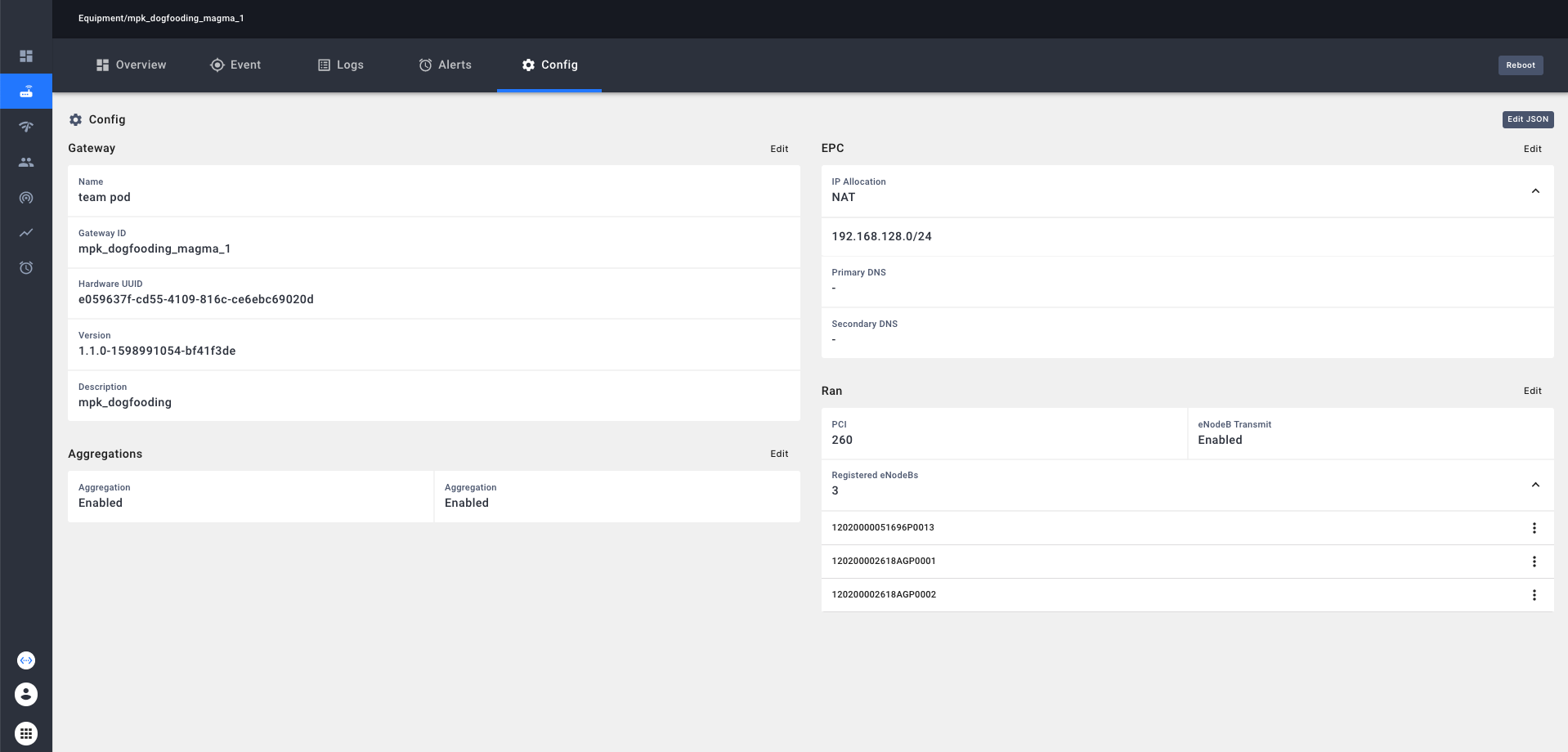
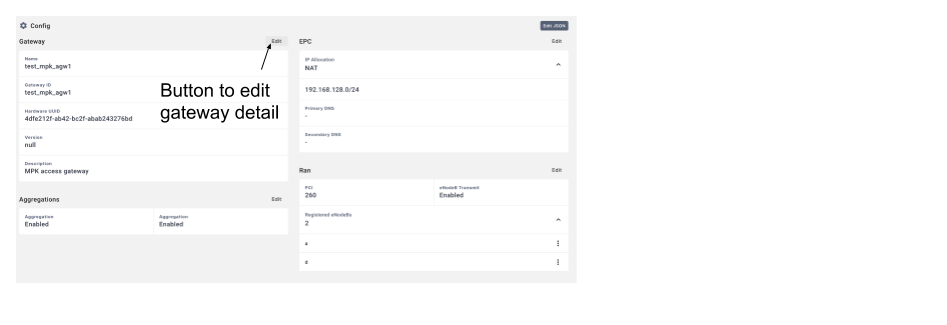
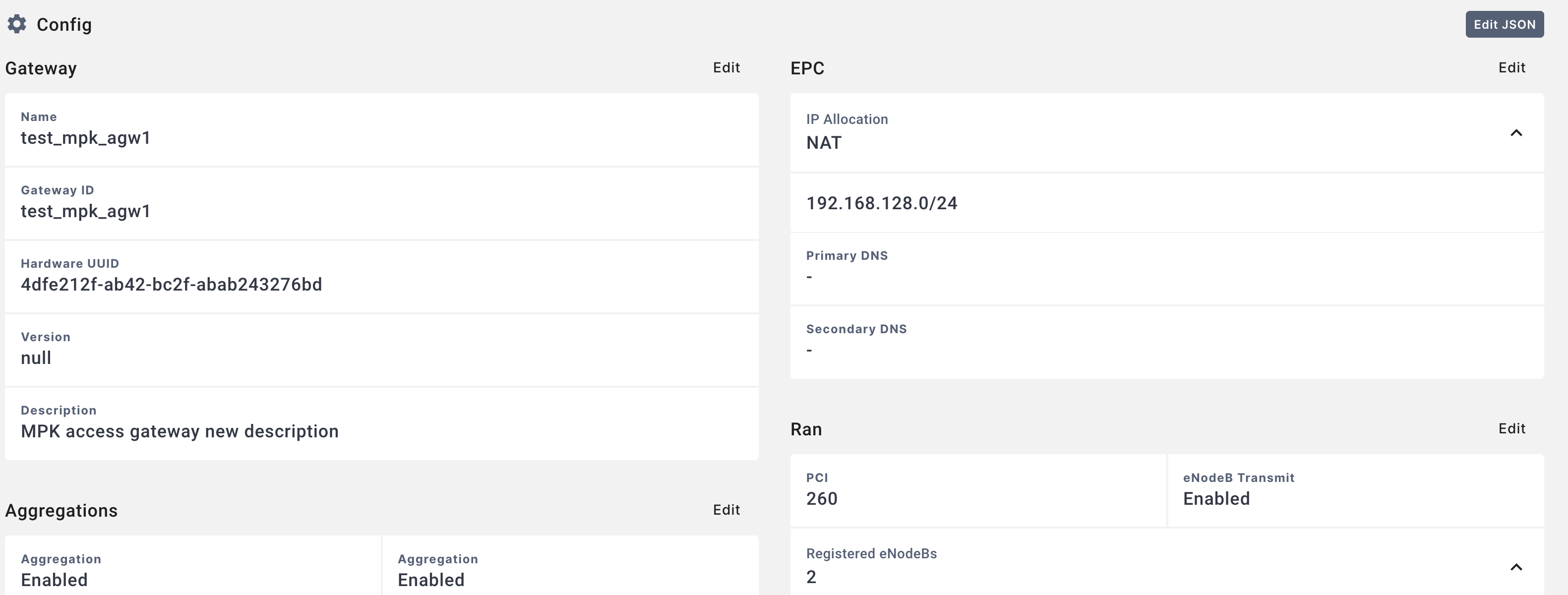
- Gateway section for viewing and editing information fields such as Name, Hardware ID, Description and Version
- EPC section
- Ran section
- Aggregation section for enabling and disabling log aggregation and event aggregation for a specific gateway
Upgrade Tiers Dialog
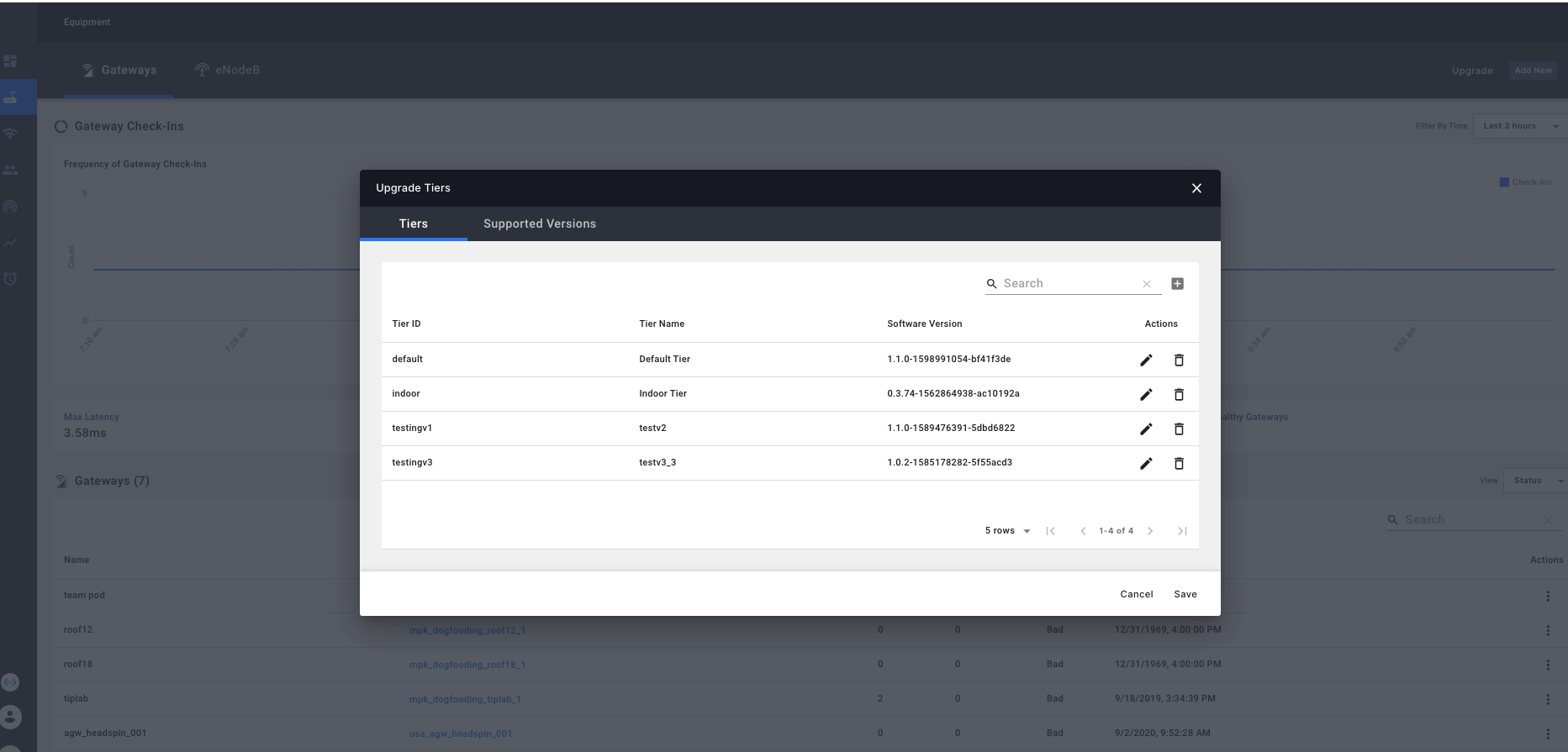
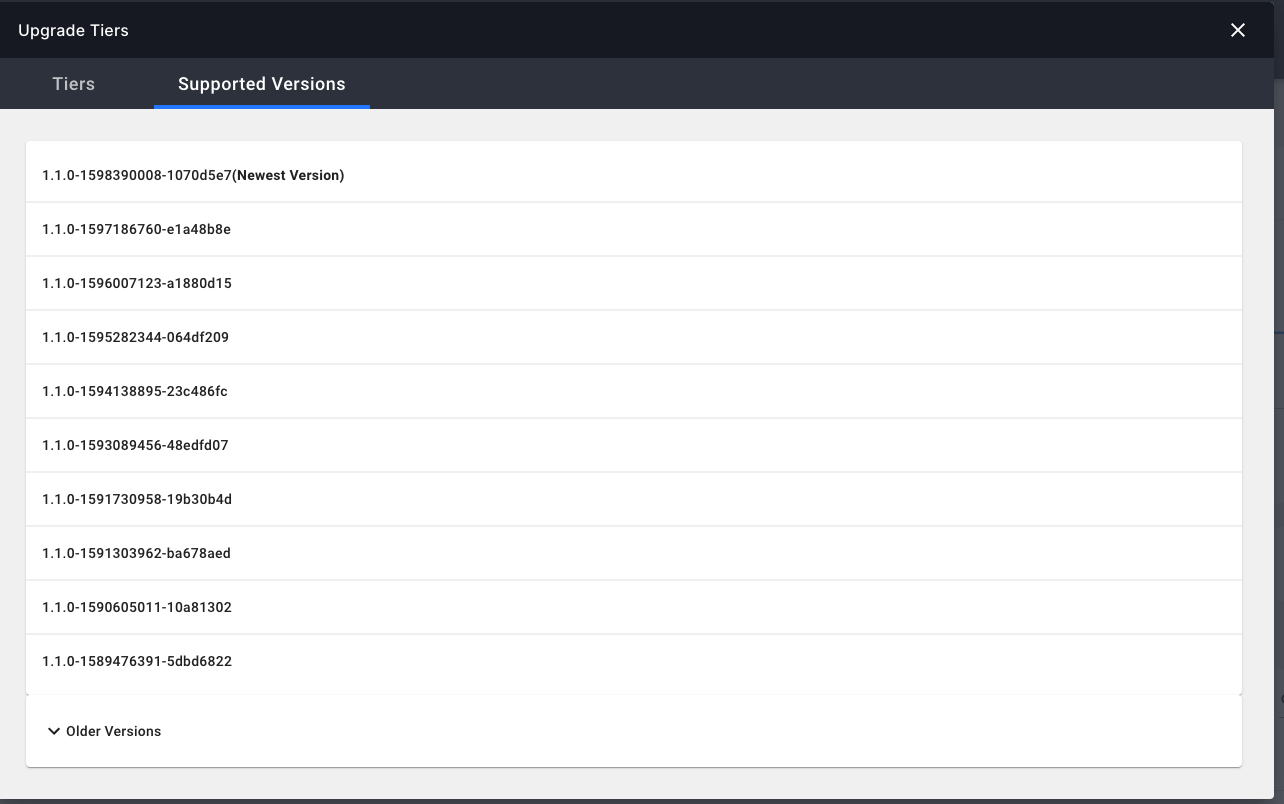
- This dialog displays the tier table and supported versions (i.e. versions from a stable channel)
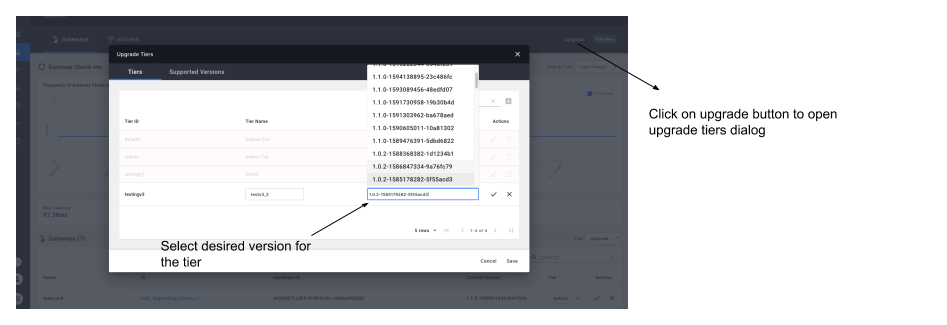
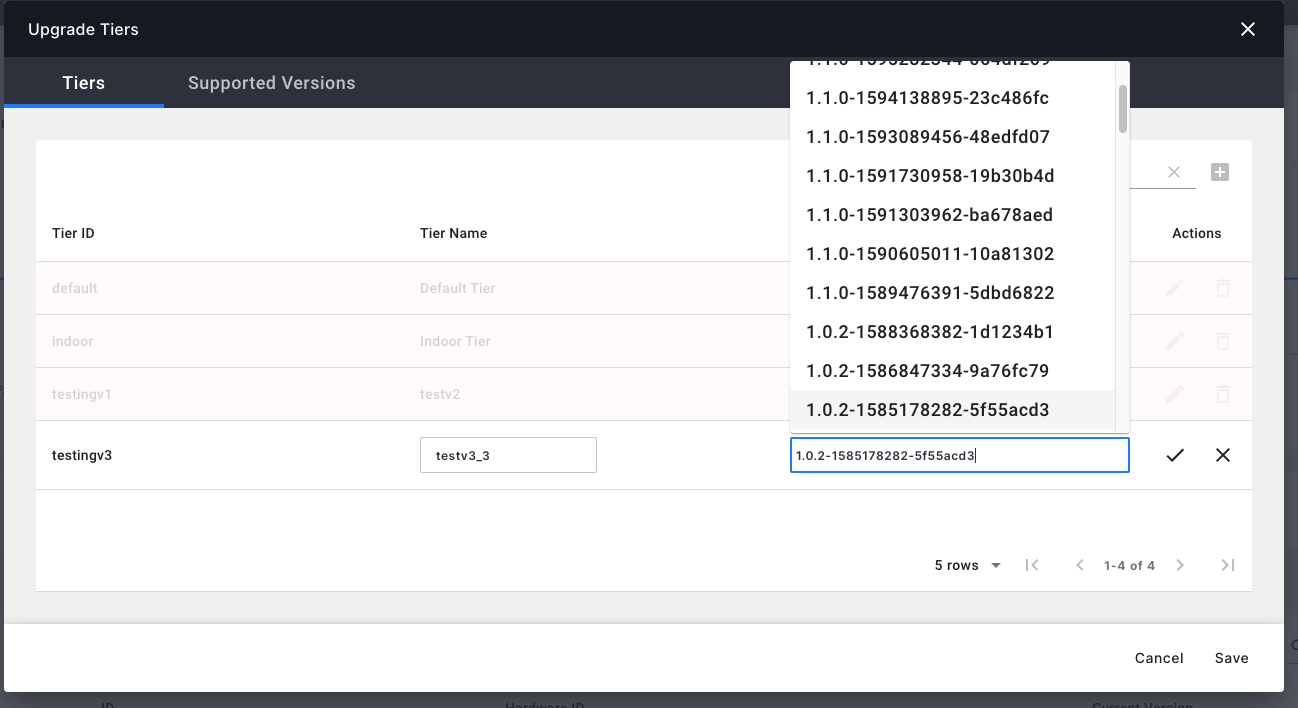
- Tier table lists all the available tiers within the network and the versions they are associated with. The version field can be edited to select one of the supported versions. Any arbitrary version can be provided as well.
eNodeB Dashboard
eNodeB overview
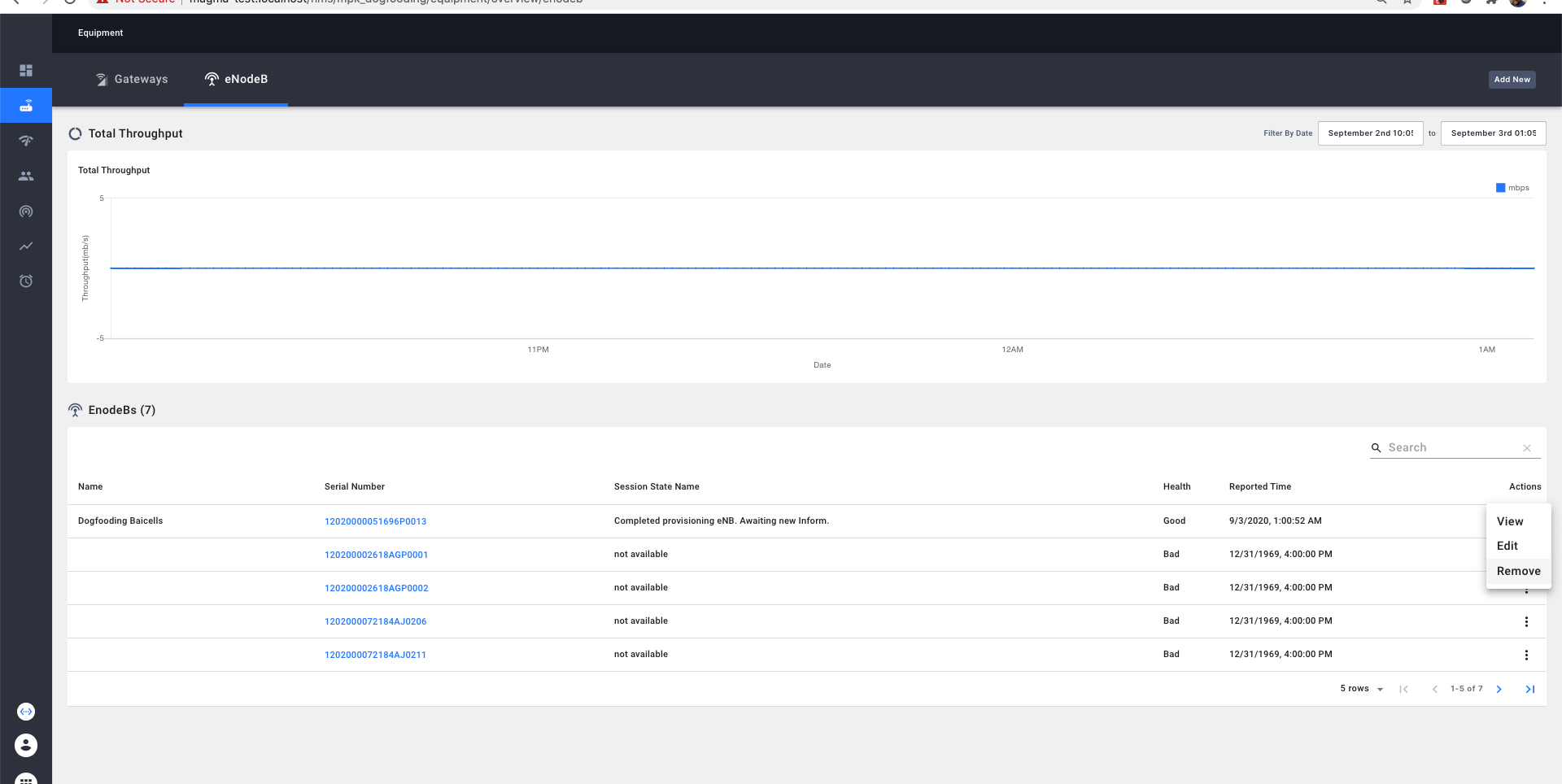
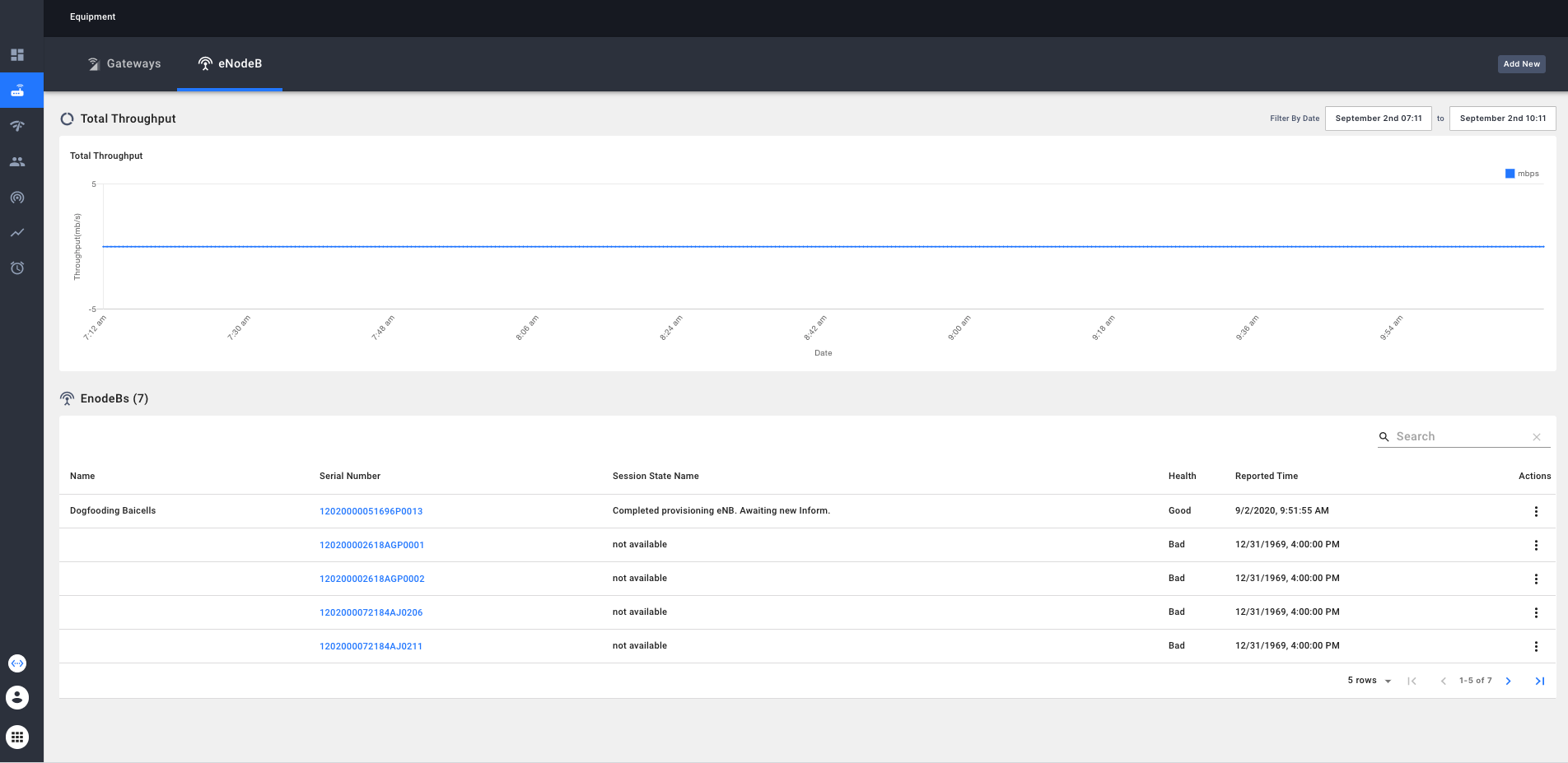 Chart to display the total throughput of all eNodeBs. It comes along with a datetime selector to filter the chart within a specific time window.
- eNodeB overview table lists all the eNodeBs in the network. Table columns includes Name, Serial, Session state name, Health and Last reported time. Clicking individual eNodeB serial links opens the eNodeB detail page for the selected eNodeB. Each table row has an action menu to view, edit and remove the eNodeB.
- Button to add a new eNodeB
eNodeB detail
eNodeB detail comprises of the following sections
Overview page
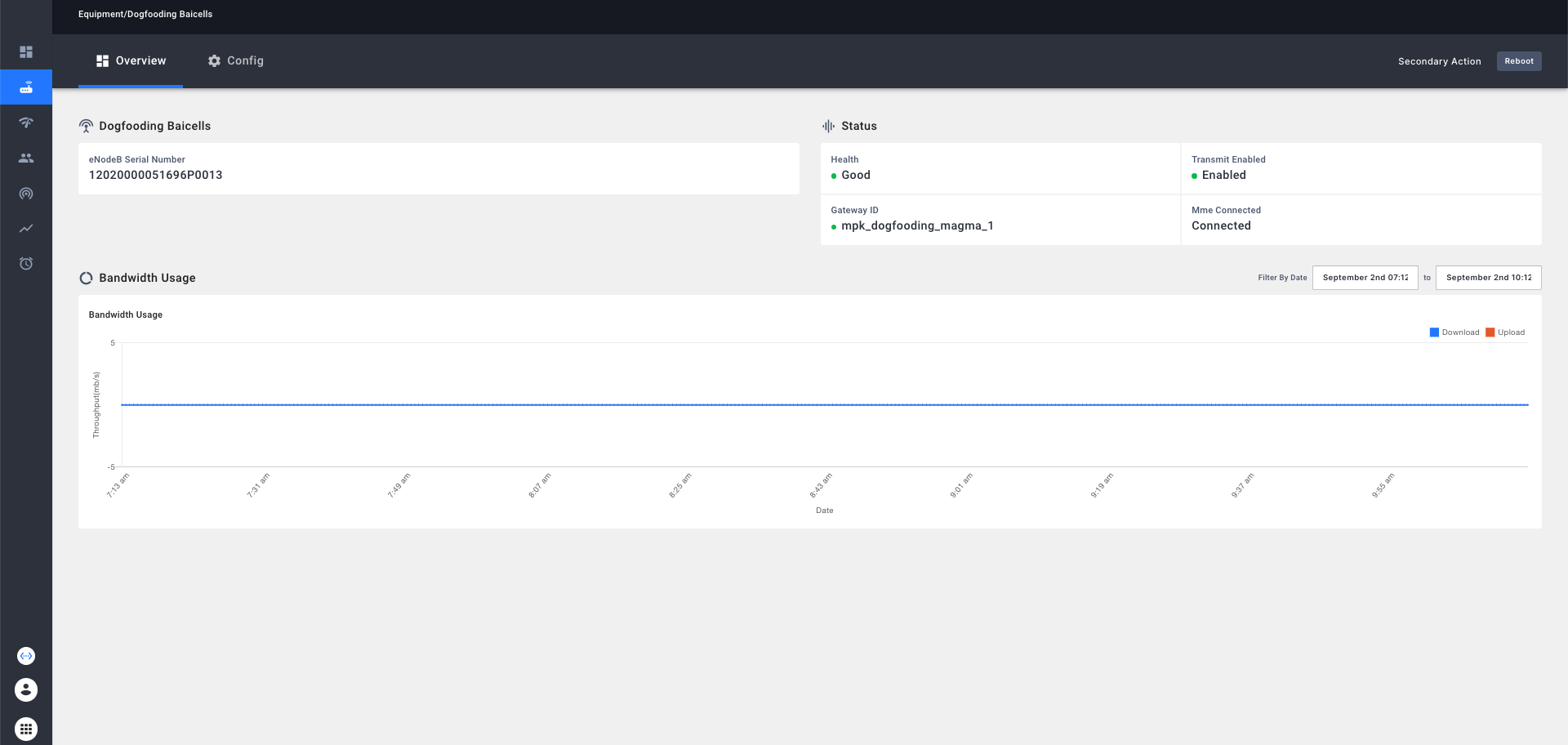
- Information (eNodeB name, serial)
- Status KPIs including (Health, Gateway ID, Transmit Enabled and MME connected)
- Throughput chart for the selected eNodeB - it comes with a date time selector to filter the chart within a specific time window.
Config page
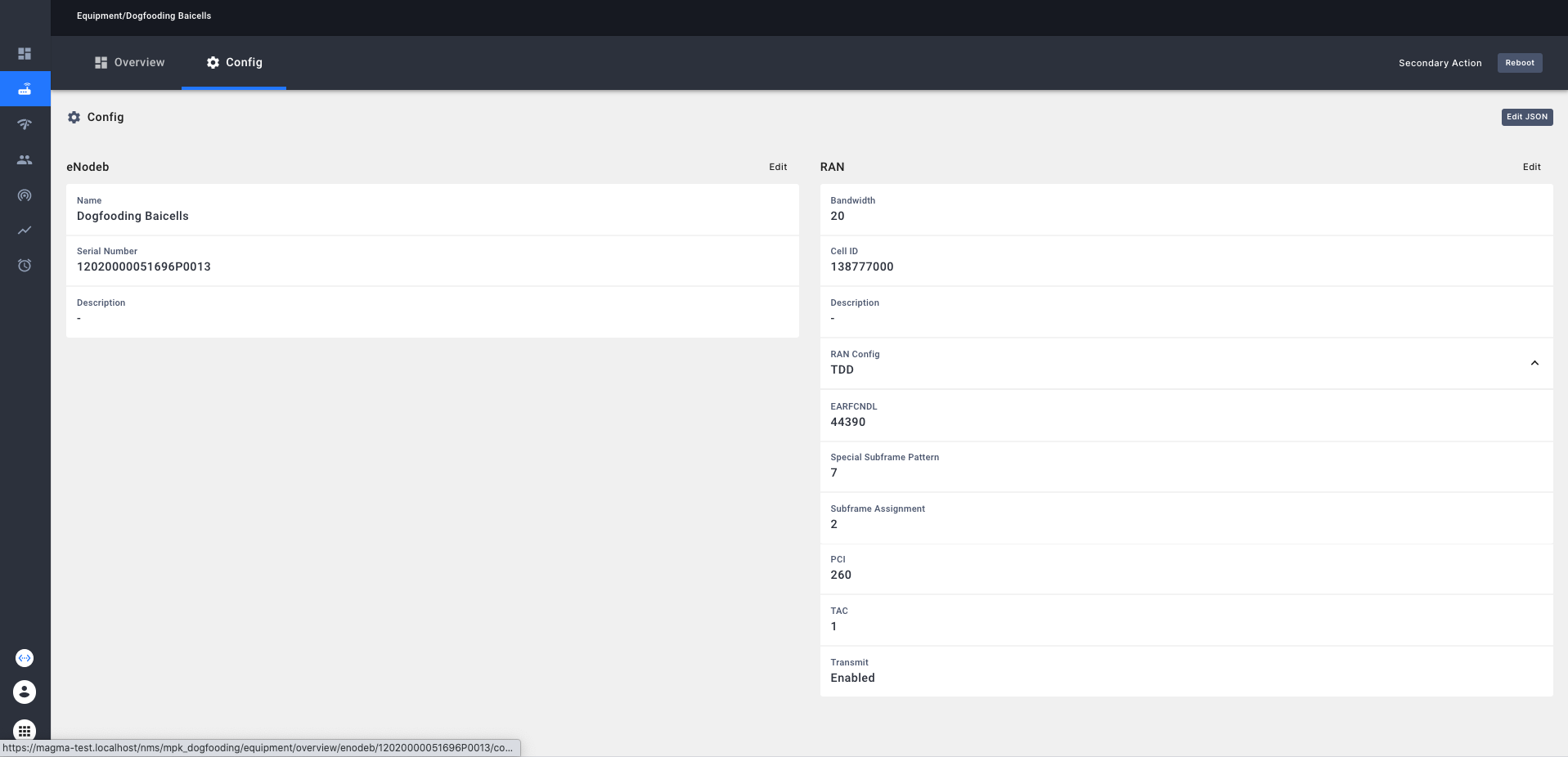
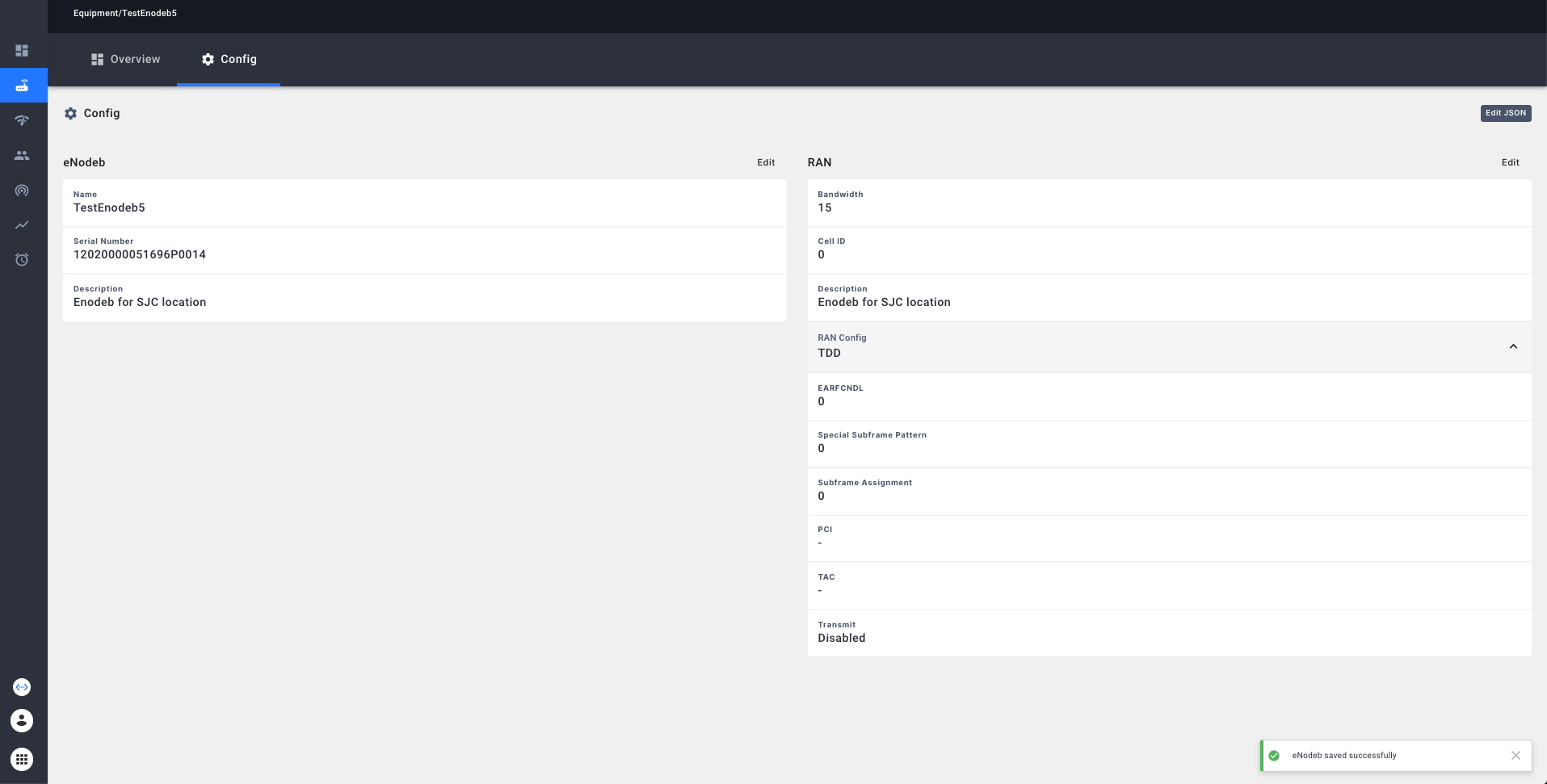
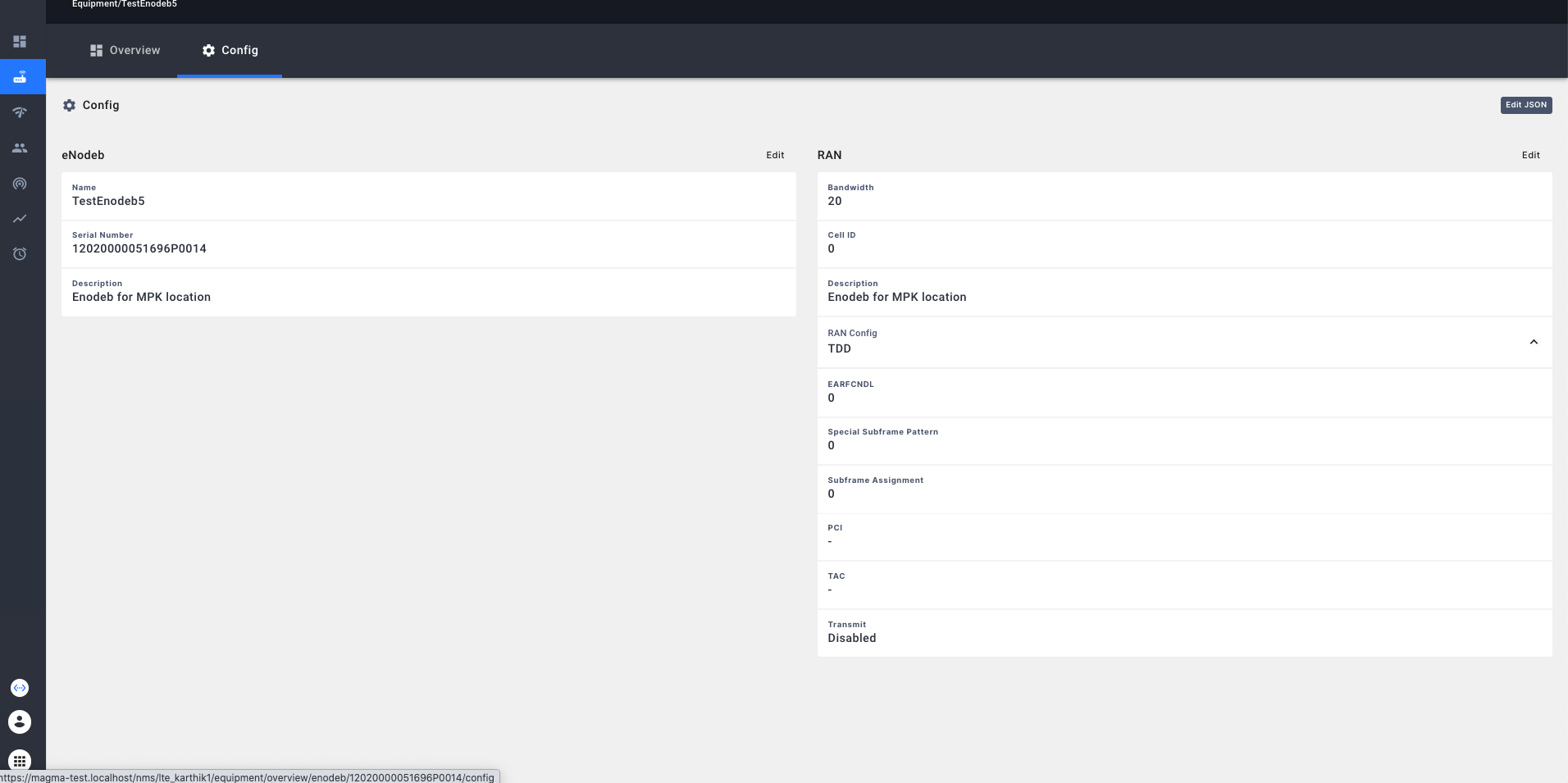
- Information (eNodeB name, serial and description of eNodeB)
- RAN section
Equipment Configuration
The following sections show step-by-step screenshots of configuring gateways, eNodeBs, subscribers, networks, policies and APN.
Gateway configuration
The same gateway configuration dialog is used for 'add' as well as 'edit'. The dialog has 4 main tabs:
-
Gateway Information - to configure gateway specific details including name, id, hardware UUID, description, current version and challenge key. The challenge key is a base64 bytestring of the key in DER format.
-
Aggregation - to enable or disable event aggregation or log aggregation service on the gateway. Data generated from event and log aggregation is used to display the tables and graphs for the event and log sections of the Gateway dashboard.
-
EPC - To configure EPC level parameters including Nat, IP and DNS configuration of the gateway.
-
RAN - To configure RAN level parameters including PCI value and eNodeBs registered with the gateway and to select if transmit should be enabled across the eNodeBs.
Adding a new gateway
As shown below, the Gateway add button is available on the Gateway Overview page.
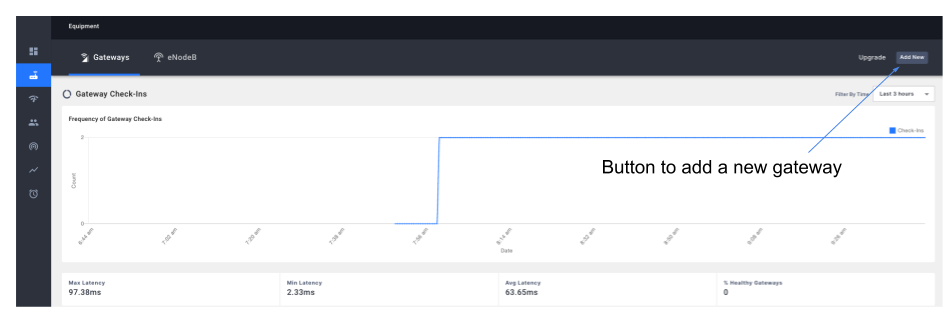
As the user clicks save and continue and proceeds to the next tab, the gateway configuration will be persisted. The user can either choose to configure all paramters at once or skip and configure them at a later point of time by editing the configuration from the gateway detail section.
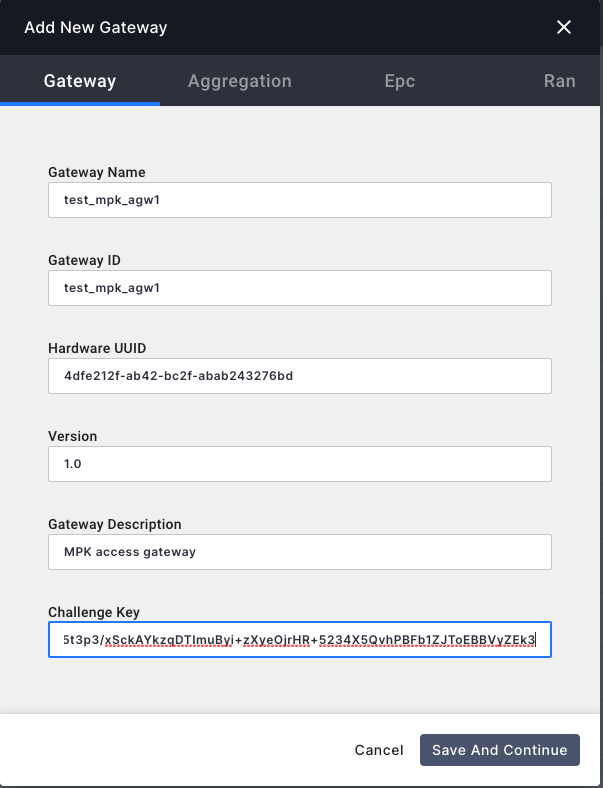
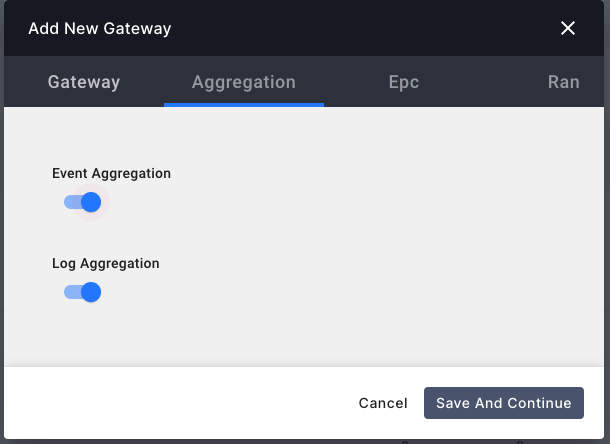
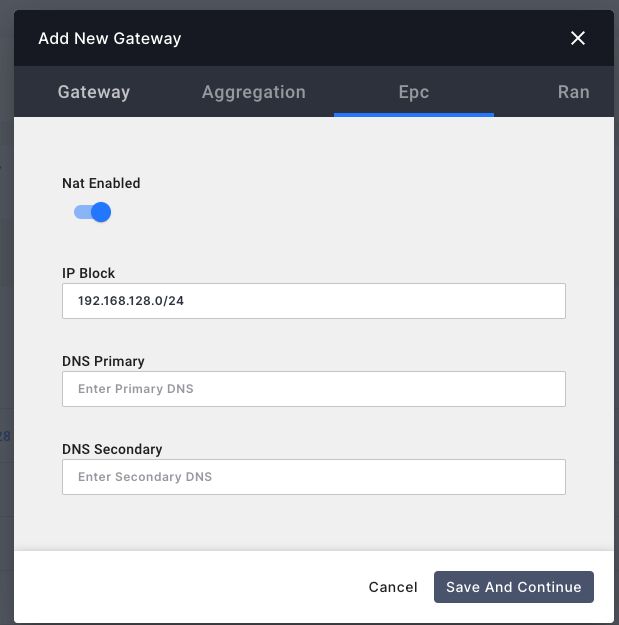
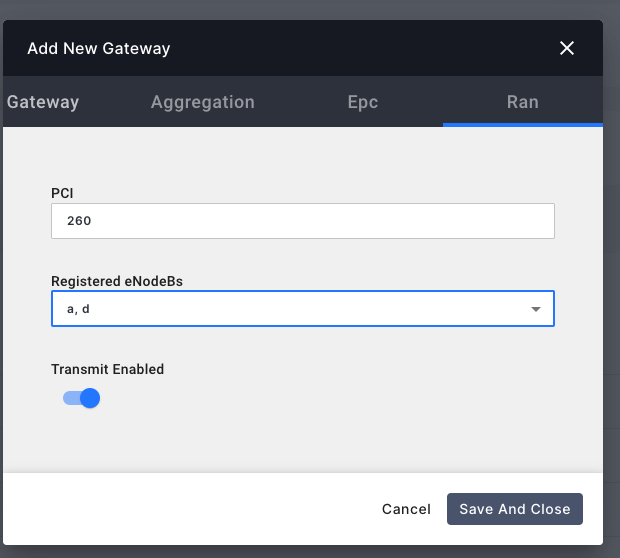
Once the gateway has been added, it will appear in the gateway table shown below.
Editing an existing Gateway
The Gateway can be edited from the gateway detail page as shown below.
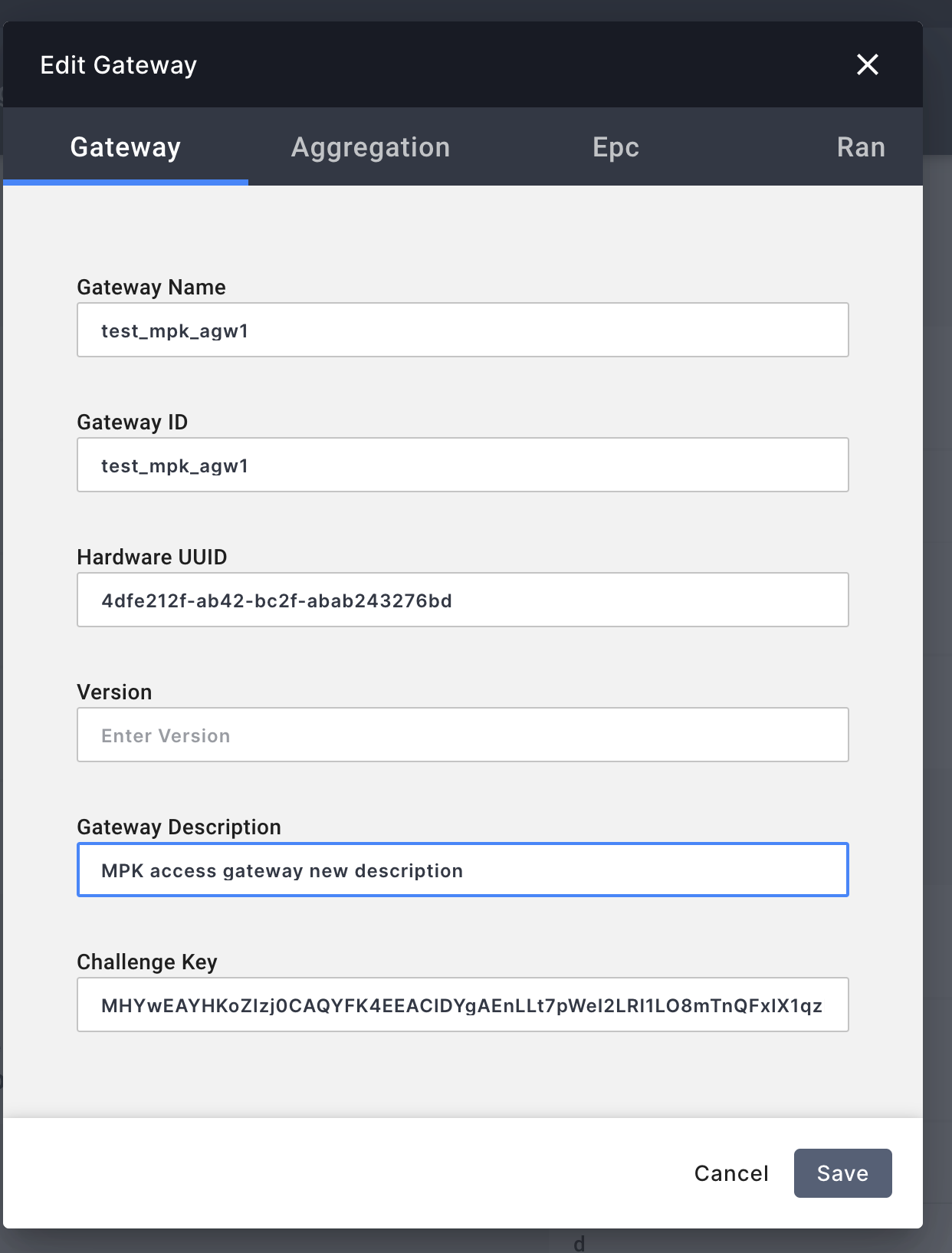
Once the user clicks 'save', the gateway detail section will be updated as shown below.
Upgrading an existing gateway
Each gateway is associated with a specific tier. This information is available
through the upgrade view of the gateway page. The gateway tier can be edited as shown
below.
The versions associated with tier can be edited from the tier dialog as follows and saved by clicking the save button.
As shown below, stable versions can be viewed by clicking the "supported versions" tab on the upgrade
tiers dialog.
Deleting a gateway
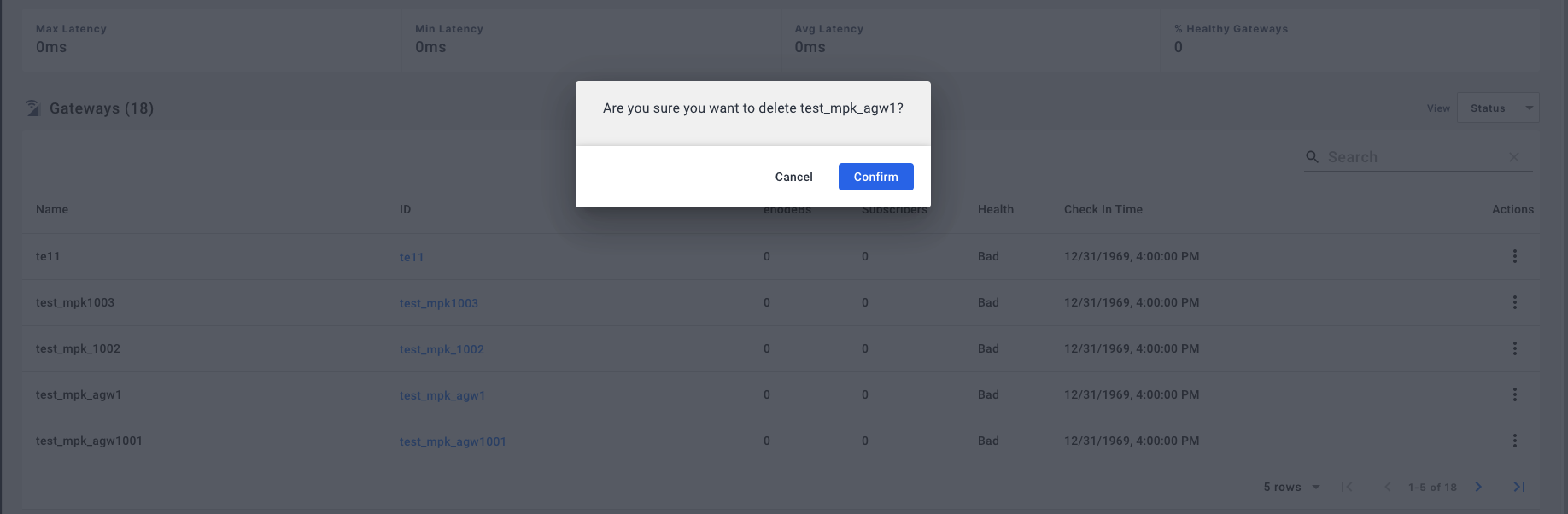
A gateway can be deleted from the overview page as shown below:
eNodeB Configuration
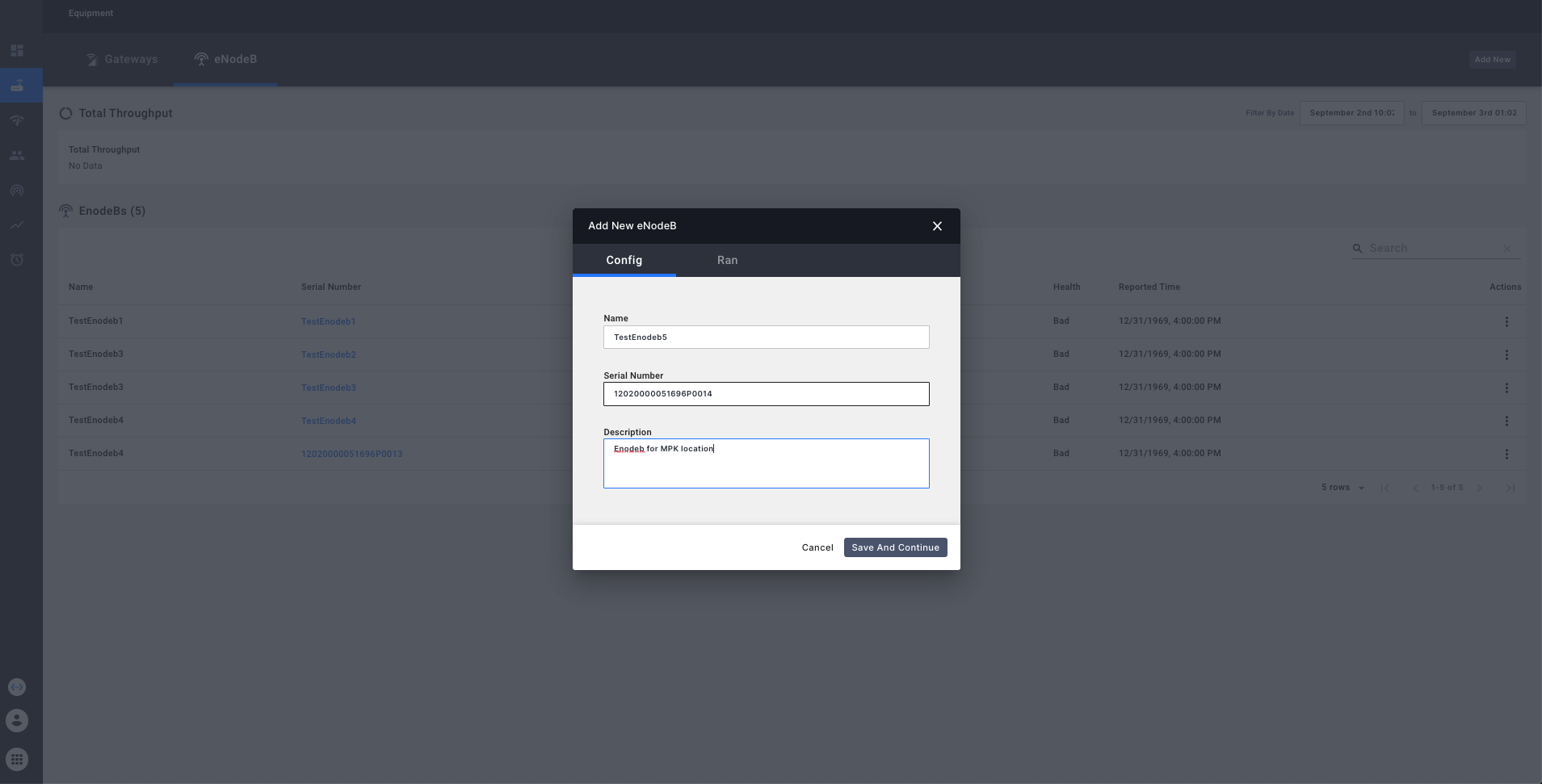
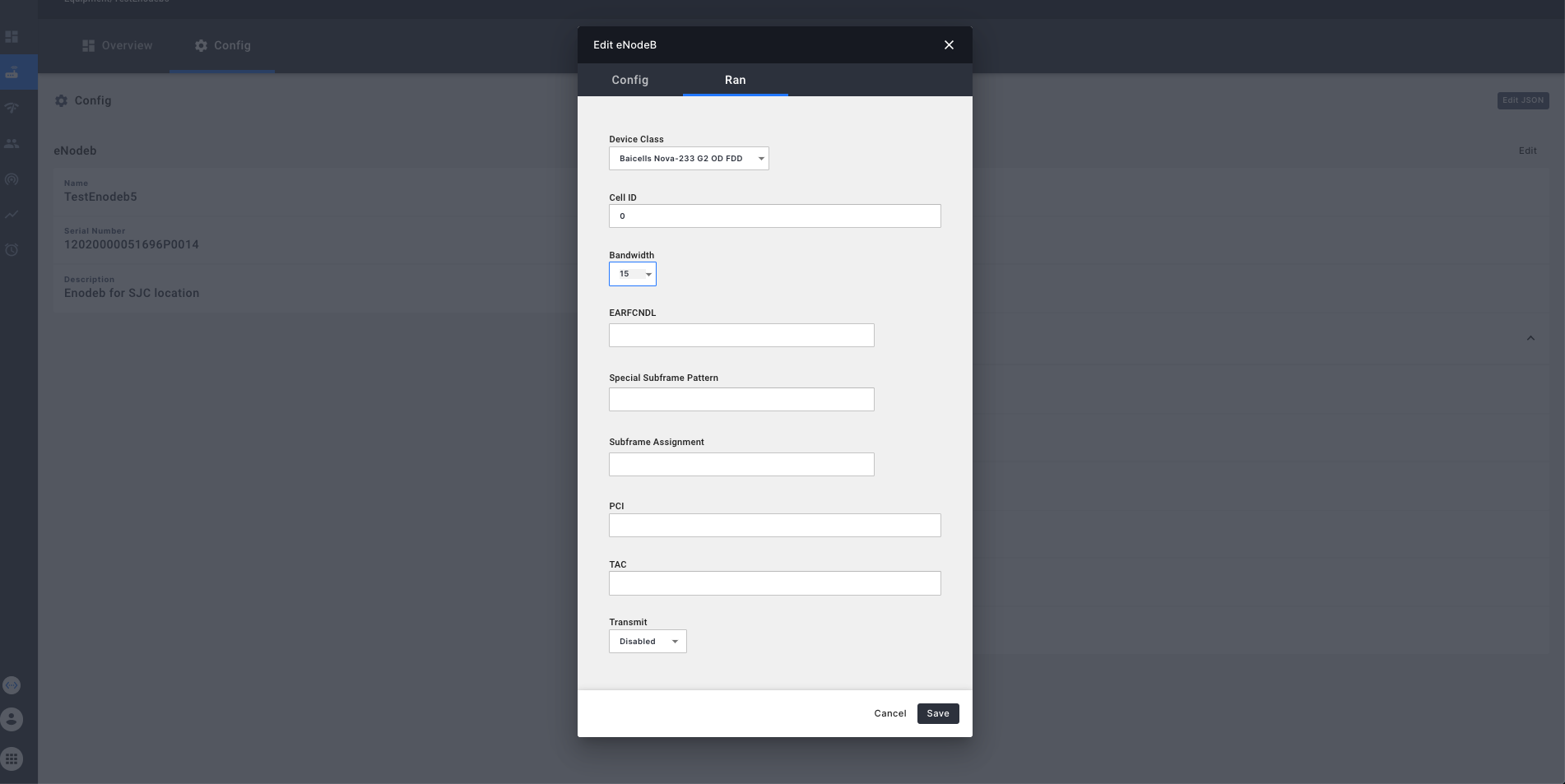
The same eNodeB configuration dialog is used for 'add' as well as 'edit'. The dialog has 2 main tabs
-
eNodeB Information - to configure eNodeB specific details including name, serial number and description.
-
RAN - to configure RAN specific paramters including Device Class, Cell ID, Bandwidth, EARFCNDL Special Subframe Pattern, Subframe Assignment, PCI, TAC and Transmit enable configuration. RAN paramters. Device class and Transmit configuration are mandatory. The remaining parameters are optional and are used to override network level RAN parameters if necessary.
Adding a new eNodeB
eNodeB add button is available on the eNodeB overview page similar to the gateway
overview page shown above.
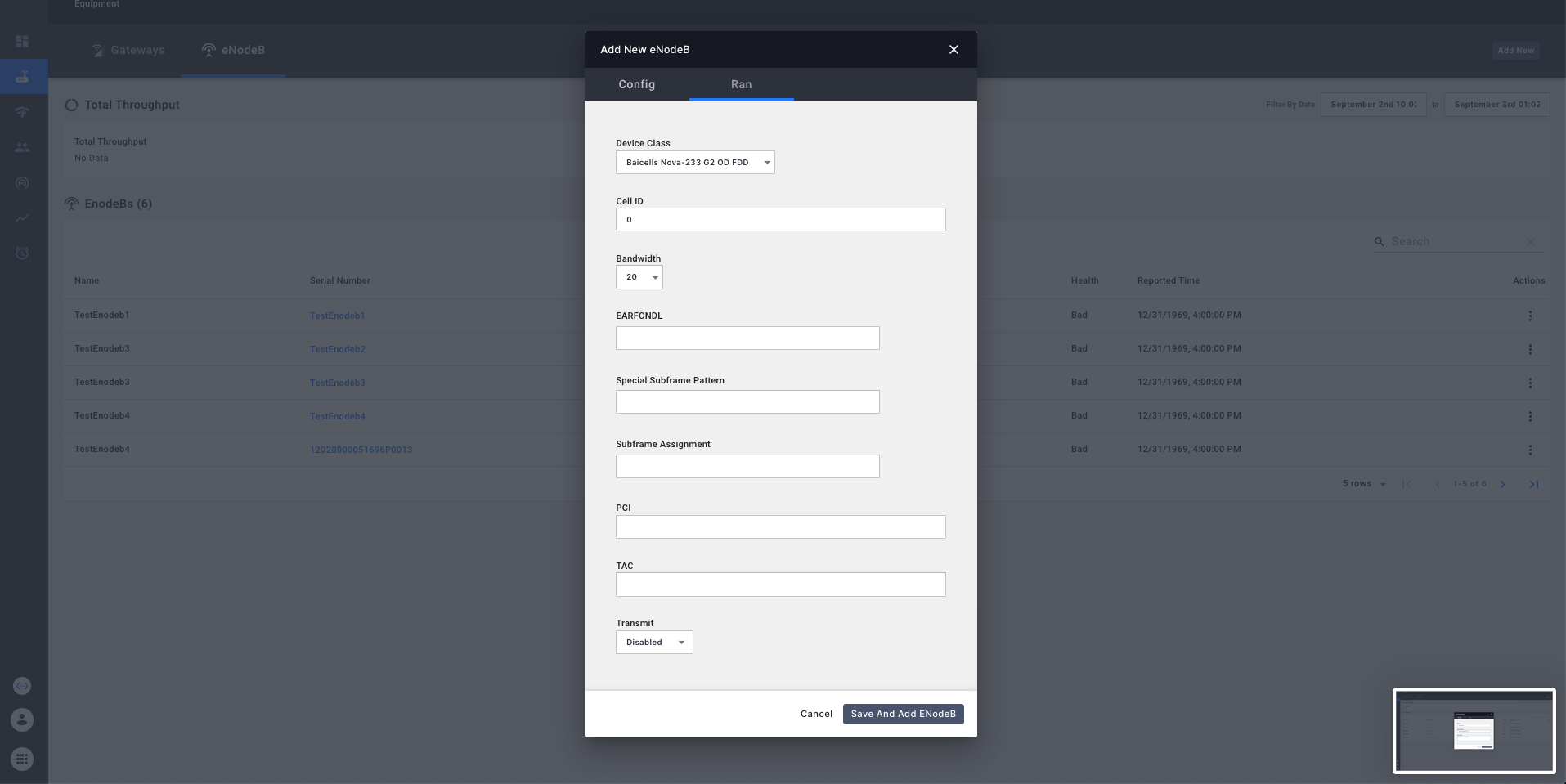 Once the eNodeB is added, it will show up in the eNodeB overview table.
Editing an existing eNodeB
An existing eNodeB can be deleted as follows:
Deleting an eNodeB
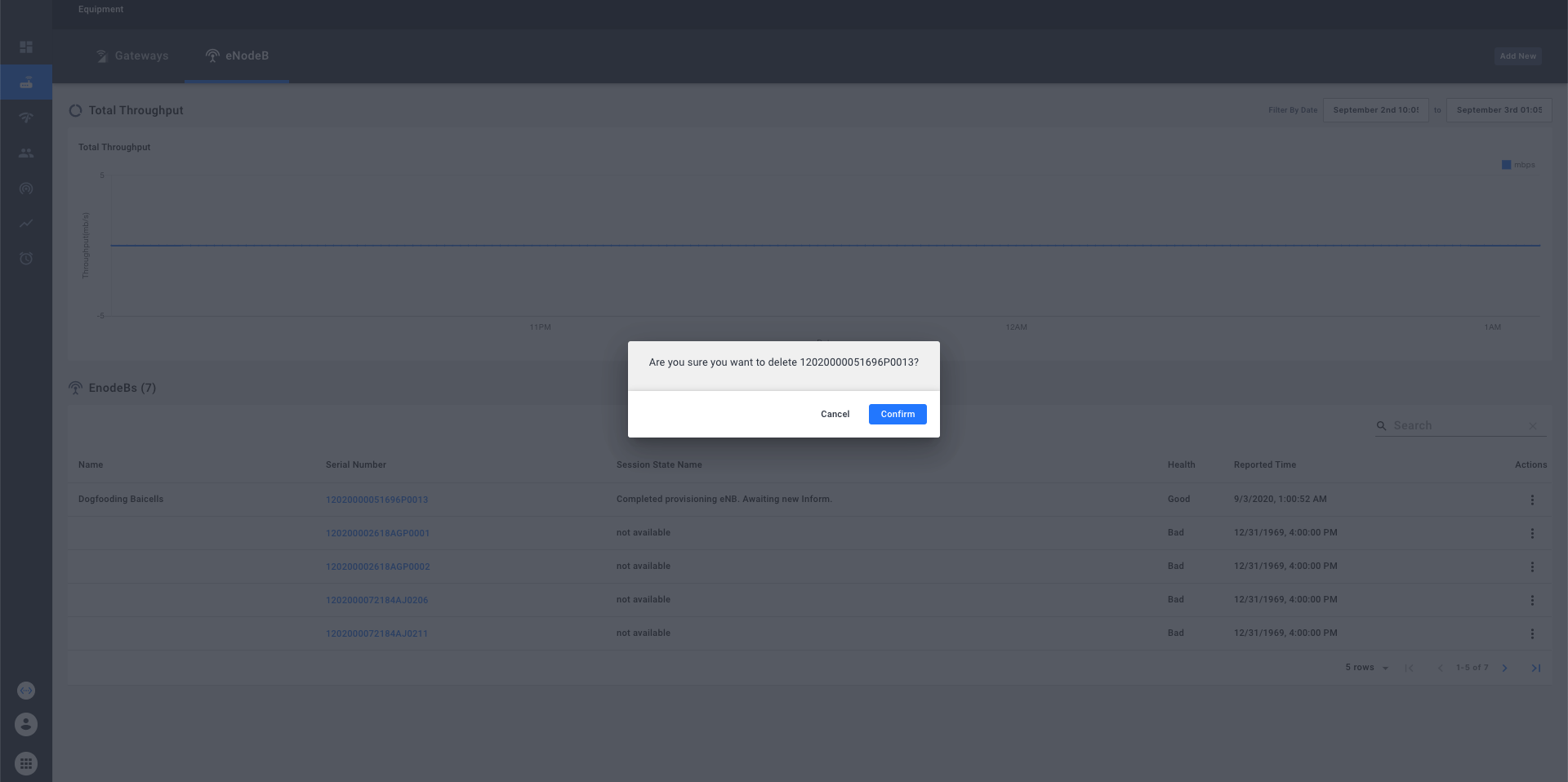
Deleting an eNodeB will issue a warning. If the user chooses to override the warning,
the eNodeB will be deleted.