eNodeB Configuration
Prerequisites
Make sure you follow the instructions in "Deploying Orchestrator" for successful installation of Orchestrator and the instructions in "AGW Configuration" to provision and configure your Access Gateway (AGW).
S1 interface
Connect your eNodeB to the eth1 interface of Magma gateway. Magma uses eth1
as the default S1 interface. If you have more than one eNodeB, use an L2
switch to connect all S1 interfaces. For debugging purposes, you may find it
particularly useful to do the following:
- Configure a managed L2 switch (e.g. this NETGEAR) to mirror port X and port Y to port Z.
- Connect port X of that switch to the
eth1interface on your AGW. - Connect the WAN interface on your enodeB to port Y on the switch.
- Connect your host to port Z on the switch.
This will allow you to do live packet captures with Wireshark from your host to debug the S1 interface between the enodeB and the AGW (filter for SCTP).
Automatic configuration
Magma officially supports auto-configuration of the following devices:
- Baicells Nova-243 Outdoor FDD/TDD eNodeB
- Firmware Version: BaiBS_RTS_3.1.6
- Firmware Version: BaiBS_RTSH_2.6.0.1
- Baicells mBS1100 LTE-TDD Base Station
- Firmware Version: BaiStation_V100R001C00B110SPC003
- Baicells Neutrino-244 ID FDD/TDD enodeB
Magma supports the following management protocols:
- TR-069 (CWMP)
Magma supports configuration of the following data models:
- TR-196 data model
- TR-181 data model
The Magma team plans to add support for more devices and management protocols.
To handle automatic configuration of eNodeB devices on your network, Magma
uses the enodebd service. The enodebd service is responsible for handling
the O&M interface between Magma and any connected eNodeB. The enodebd service
can be disabled if you configure your eNodeB devices manually.
Baicells
Use the enodeB's management interface to set the management server URL to
baiomc.cloudapp.net:48080. Magma uses DNS hijacking to point the eNodeB to
the configuration server being run by enodebd. baiomc.cloudapp.net:48080
will point to 192.88.99.142, the IP address that the TR-069 ACS is
being hosted on.
Provisioning Your eNodeB on NMS
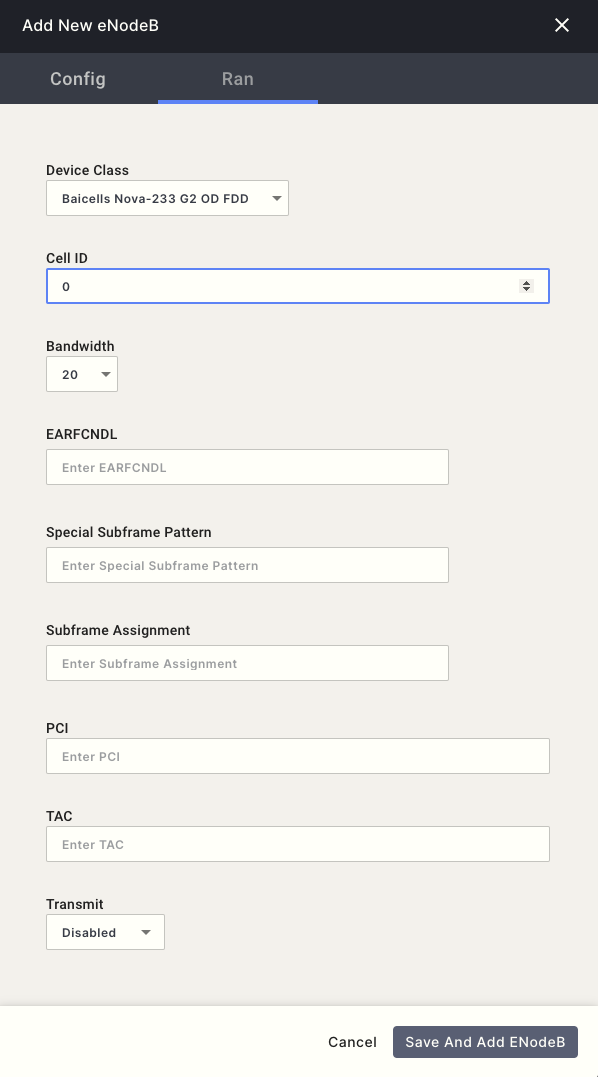
Get the serial number of your eNodeB, you'll need it to register the device. On the NMS, navigate to "Equipment" in the sidebar, select "eNodeB" in the upper left, and hit "Add New" in the upper right.
Configure the RAN parameters in the resulting multi-step modal as necessary. Note that fields left blank will be inherited from either the network or gateway LTE parameters:
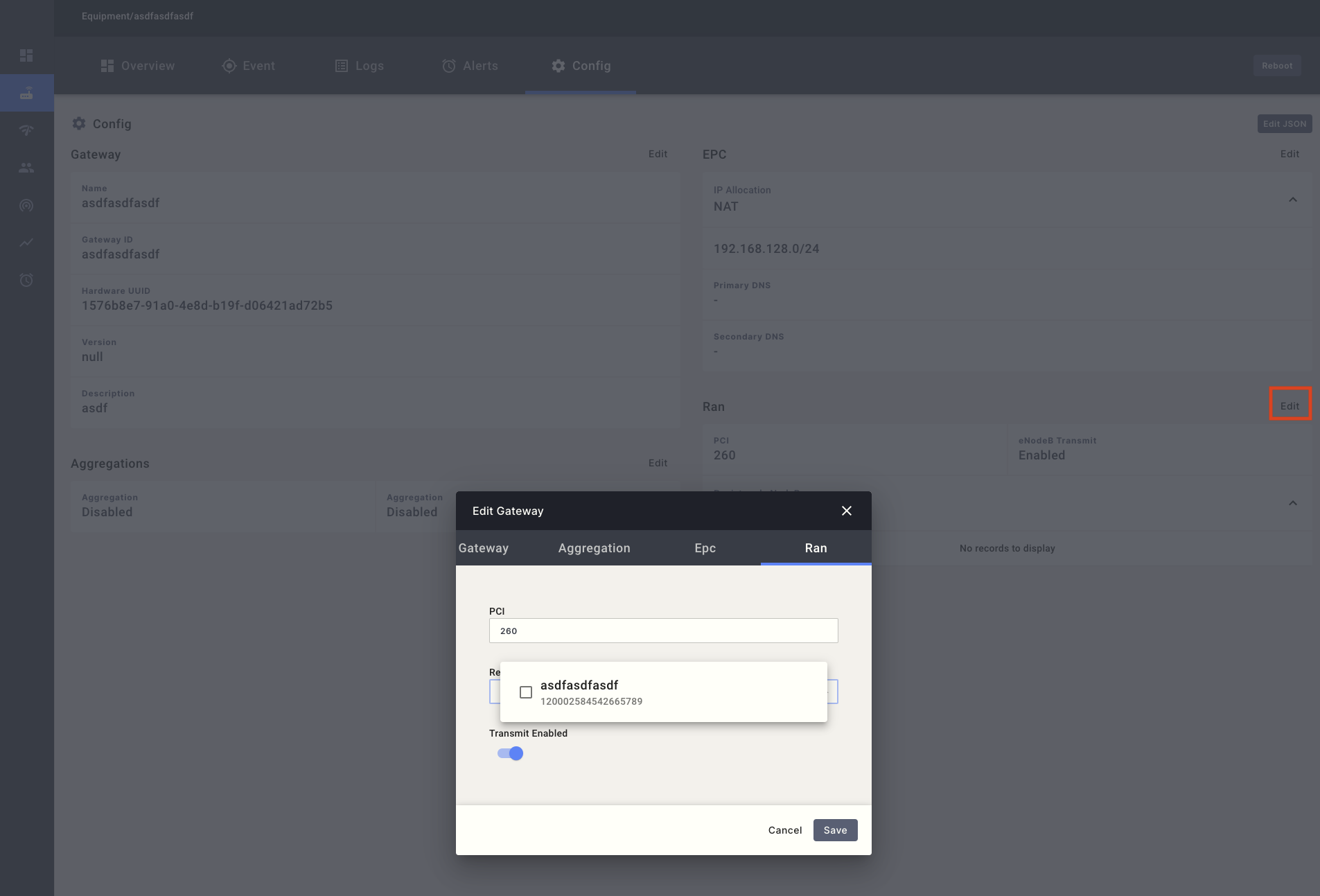
Then, go back to the "Gateways" page and click on the ID of the AGW that you registered in the gateway table. Click through to the "Config" tab of the AGW detail view, then hit "Edit" by the RAN configuration. Select the eNodeB that you just registered in the multi-select dropdown, then save the update. Make sure that transmit is enabled.
Basic Troubleshooting
After connecting your eNodeB(s) to the gateway through the eth1 interface, you
may want to check a few things if auto-configuration is not working.
Magma will be running a DHCP server to assign an IP address to your connected
eNodeB. Check if an IP address gets assigned to your eNodeB by either checking
the eNodeB UI or monitoring the dnsd service.
journalctl -u magma@dnsd -f
# Check for a similar log
# DHCPDISCOVER(eth1) 48:bf:74:07:68:ee
# DHCPOFFER(eth1) 10.0.2.246 48:bf:74:07:68:ee
# DHCPREQUEST(eth1) 10.0.2.246 48:bf:74:07:68:ee
# DHCPACK(eth1) 10.0.2.246 48:bf:74:07:68:ee
Use the enodebd_cli.py tool to check basic status of eNodeB(s). It also allows
for querying the value of parameters, setting them, and sending reboot requests
to the eNodeB. The following example gets the status of all connected eNodeBs.
enodebd_cli.py get_all_status
# --- eNodeB Serial: 120200002618AGP0001 ---
# IP Address..................10.0.2.246
# eNodeB connected.....................1
# eNodeB Configured....................1
# Opstate Enabled......................1
# RF TX on.............................1
# RF TX desired........................1
# GPS Connected........................0
# PTP Connected........................0
# MME Connected........................1
# GPS Longitude...............113.902069
# GPS Latitude.................22.932018
# FSM State...............Completed provisioning eNB. Awaiting new Inform.
It may take time for the eNodeB to start transmitting because enodebd will
reboot the eNodeB to apply new configurations. Monitor the progress of enodebd
using the following command
journalctl -u magma@enodebd -f
# Check for a similar log
# INFO:root:Successfully configured CPE parameters!
Manual configuration
Manual configuration of connected eNodeB(s) is always possible. Magma was tested
with multiple Airspan eNodeB models configured through NetSpan management
software.
When manually configuring eNodeBs, make sure the eNodeB configuration matches
that of the Magma cellular configuration. Pay special attention to the
configuration of PLMN, EARFCN and TAC.
Basic Troubleshooting
When manually configuring your eNodeB, you can use the manufacturers tools or interfaces to monitor and troubleshoot the eNodeB configuration.
You can also listen to the S1 interface traffic and validate a proper S1
setup and handshake. Below are the SCTP packets exchanged between the eNodeB
and MME.
Source        Destination    Protocol  Length   Info
10.0.2.246    10.0.2.1       SCTP      66       INIT
10.0.2.1      10.0.2.246     SCTP      298      INIT_ACK
10.0.2.246    10.0.2.1       SCTP      278      COOKIE_ECHO
10.0.2.1      10.0.2.246     SCTP      60       COOKIE_ACK
10.0.2.246    10.0.2.1       S1AP      106      S1SetupRequest
10.0.2.1      10.0.2.246     SCTP      62       SACK
10.0.2.1      10.0.2.246     S1AP      90       S1SetupResponse
10.0.2.246    10.0.2.1       SCTP      62       SACK
10.0.2.246    10.0.2.1       SCTP      66       HEARTBEAT
10.0.2.1      10.0.2.246     SCTP      66       HEARTBEAT_ACK
Once your eNodeB starts transmitting, UEs may attempt to attach to your network. Your AGW will reject these attach requests due to authentication failure until you add the corresponding IMSI to the subscriber database.
Continue to the next section to register your subscribers and configure your APNs to start serving traffic.
Unmanaged eNB Installation via AGW
Background
The configuration of unmanaged (eNBs lacking TR-069 functionality) is done through the dnsd service within the AGW. In order to enable dynamic IP allocation of these eNBs, this service must be disabled.
Disable dnsd Service
- SSH into your AGW
- Type
cat -n dnsd.conf - Comment out the line for dhcp-range
Alternatively, this can also be completed using the orchestrator through dhcp_server_enabled on the network cloud in the DNS configuration.
S1 Interface
Connect your eNodeB to the eth1 interface of Magma gateway. Magma uses eth1 as the default S1 interface. If you have more than one eNodeB, use an L2 switch to connect all S1 interfaces. For debugging purposes, you may find it particularly useful to do the following:
- Configure a managed L2 switch (e.g. this NETGEAR) to mirror port X and port Y to port Z.
- Connect port X of that switch to the
eth1interface on your AGW. - Connect the WAN interface on your enodeB to port Y on the switch.
- Connect your host to port Z on the switch.
This will allow you to do live packet captures with Wireshark from your host to debug the S1 interface between the enodeB and the AGW (filter for SCTP). In this case, ensure that your eNB is using IPs from the MME pool and verify that that eNB is point to the MME IP on the AGW.