Traffic dashboard
Policy dashboard
Policy Overview Table
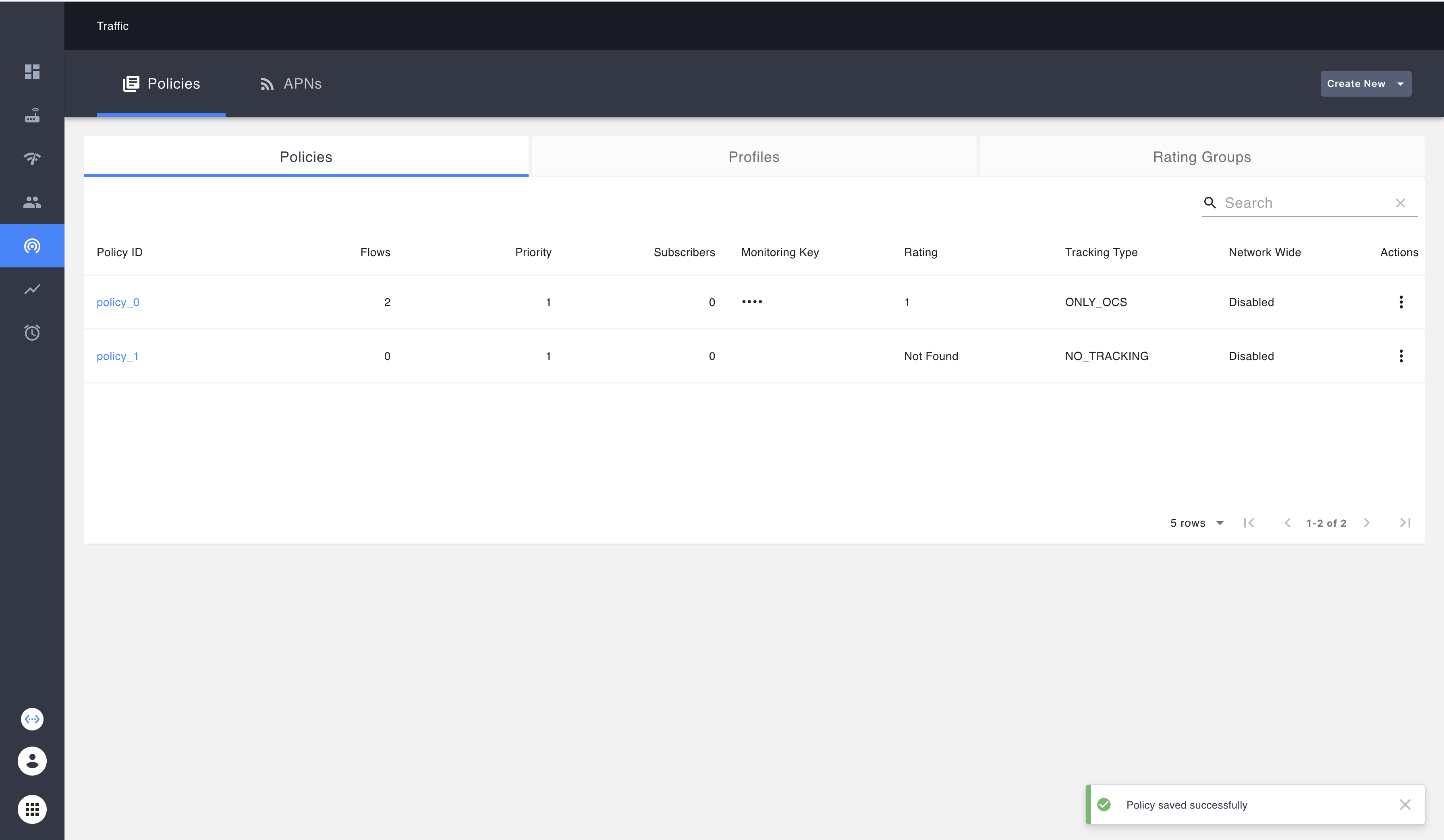 This table contains all the policies configured in the network.
Columns include PolicyID, Flows, Priority, Number of subscribers, Monitoring key, Rating, Tracking type. Each row comes with an action menu to view, edit and delete the policy.
This table contains all the policies configured in the network.
Columns include PolicyID, Flows, Priority, Number of subscribers, Monitoring key, Rating, Tracking type. Each row comes with an action menu to view, edit and delete the policy.
APN dashboard
APN Overview Table
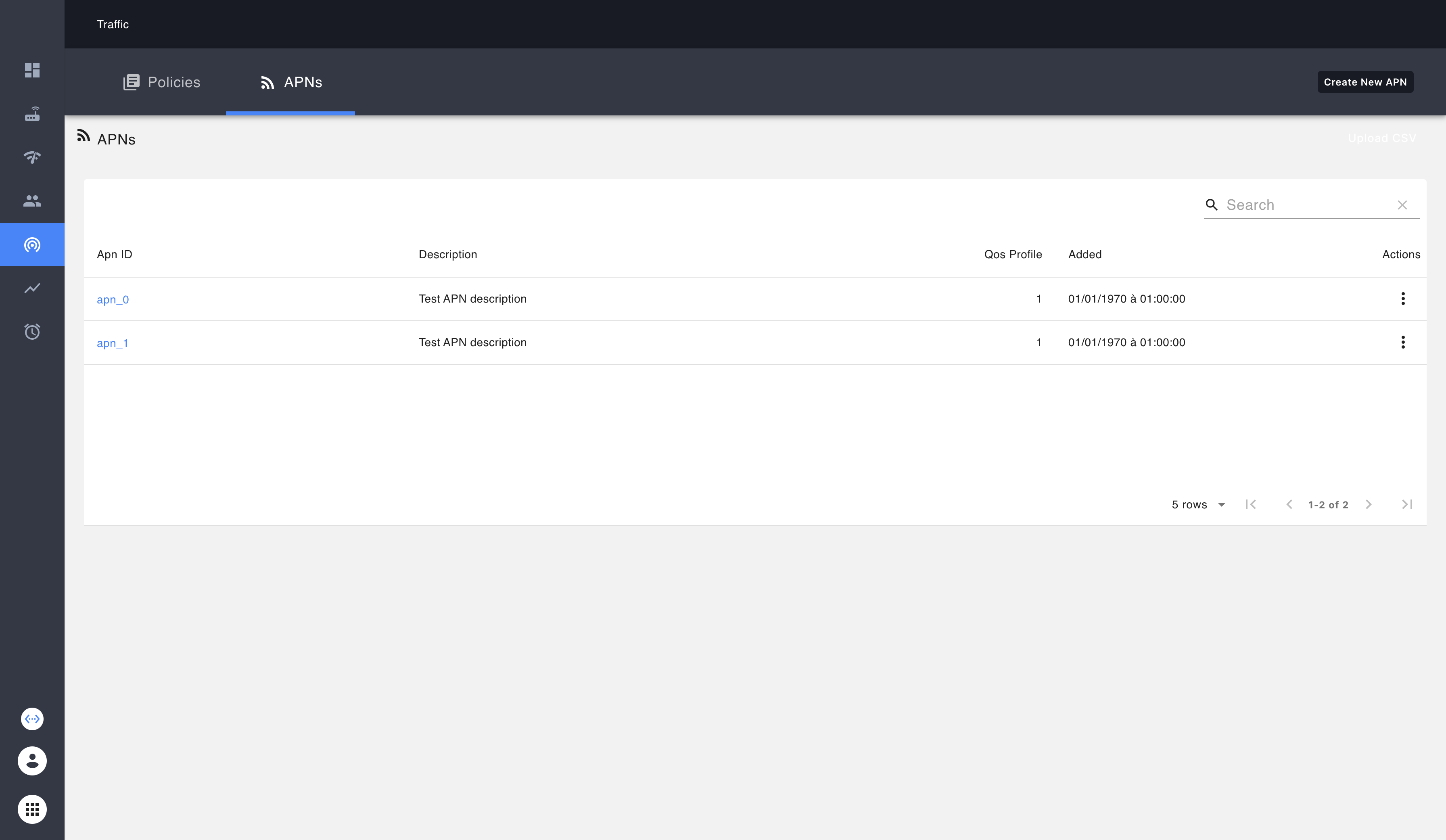
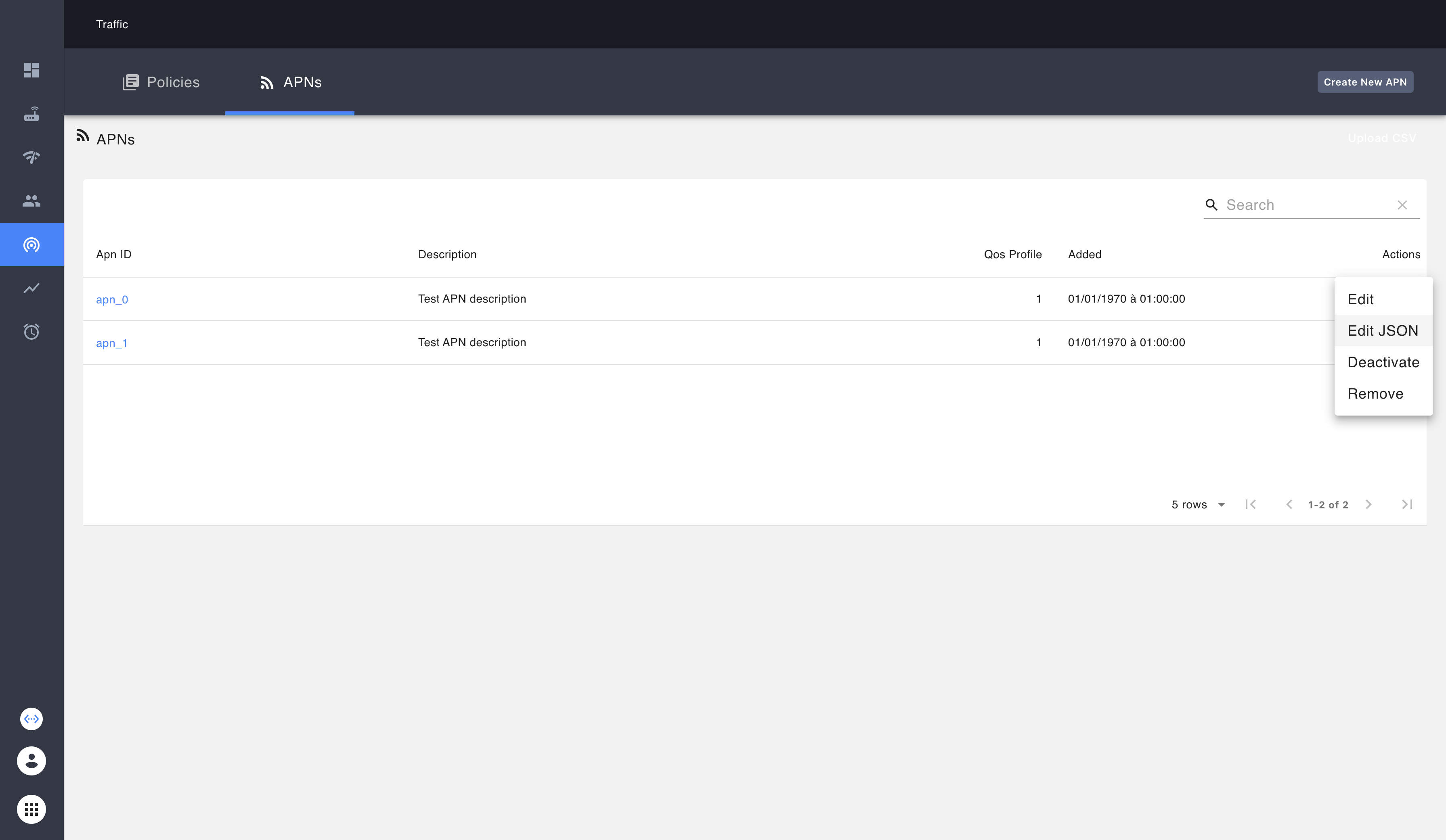
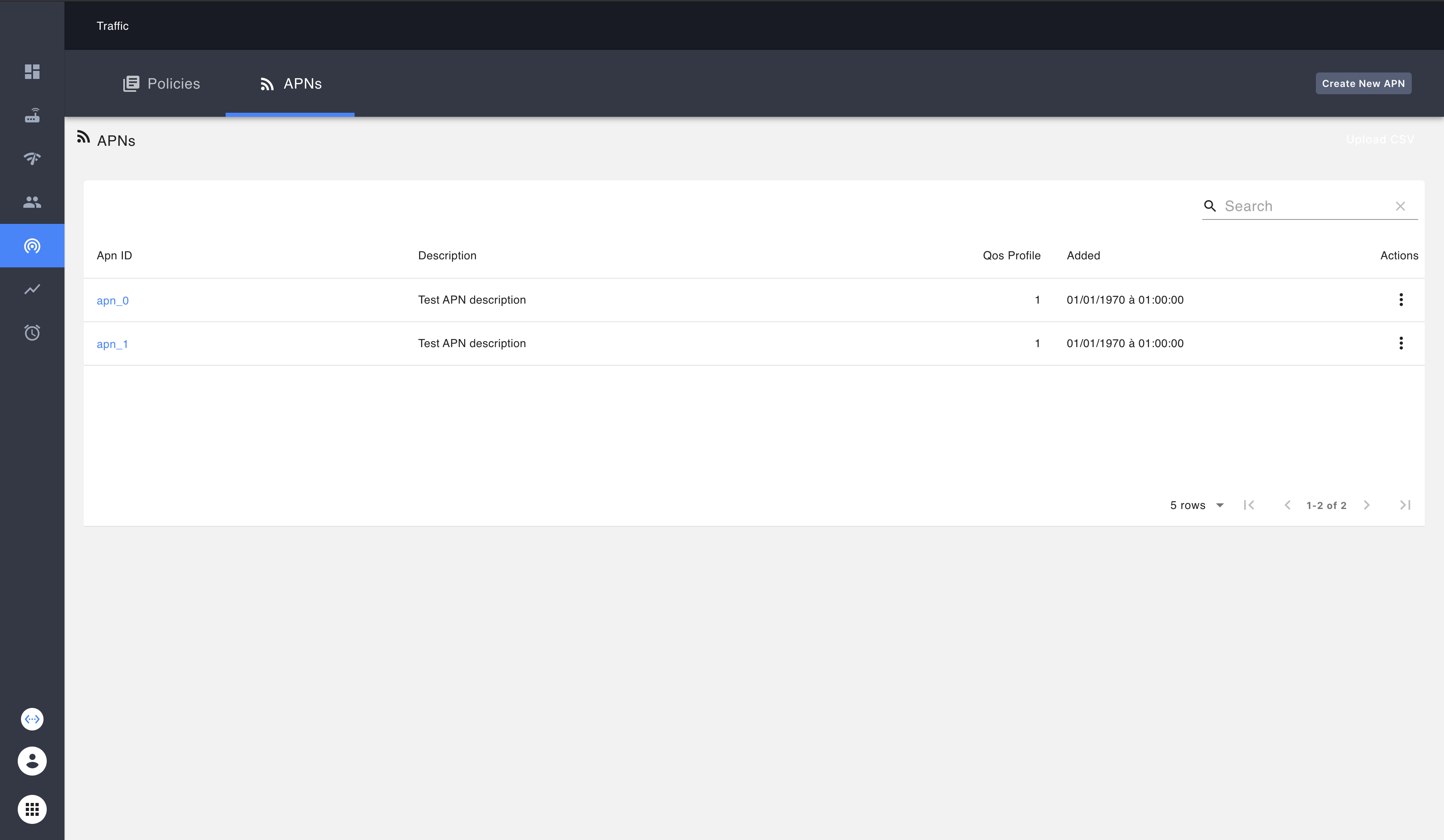 This table contains all the APNs configured in the network. Columns include ApnID, Description, Qos Profile, Added Date. Each row comes with an action menu to view, edit and delete the APN.
Traffic configuration
The following sections show step-by-step screenshots of configuring policies and APNs.
Policy Configuration
The same policy configuration dialog is used for 'add' as well as 'edit'. The dialog has 5 main tabs:
- Policy - to configure Policy ID, Priority Level and QoS Profile. Here you can name your policy, determine the level of priority, choose to roll it out network wide, and assign a QoS Profile.
- Flows - to add and configure policy flows. In this tab, you can route traffic based on the direction and protocol. For example, this can be used to block ip traffic in a certain direction.
- Tracking - to configure Monitoring Key, Rating Groups and Tracking Type. You can choose your tracking type between: only OCS, only PCRF, OCS and PCRF, and no tracking.
- Redirect - to configure Server Address, Address Type and enable or disable Support. With redirect enabled, matching traffic can be redirected to a captive portal server.
- Header Enrichment - to enable header enrichment on a list of URL targets. Here you can specify your list of URLs.
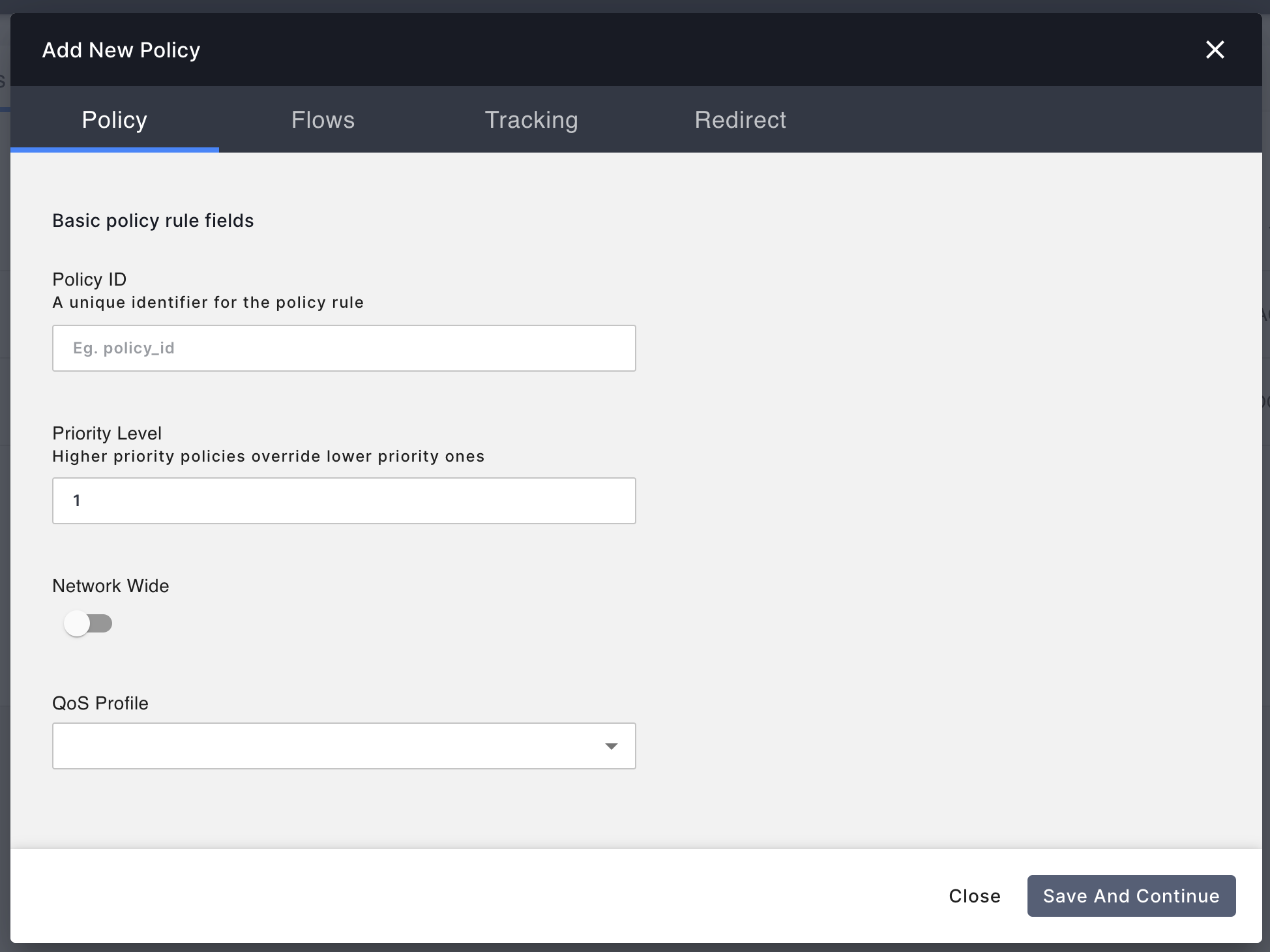 Policy Tab
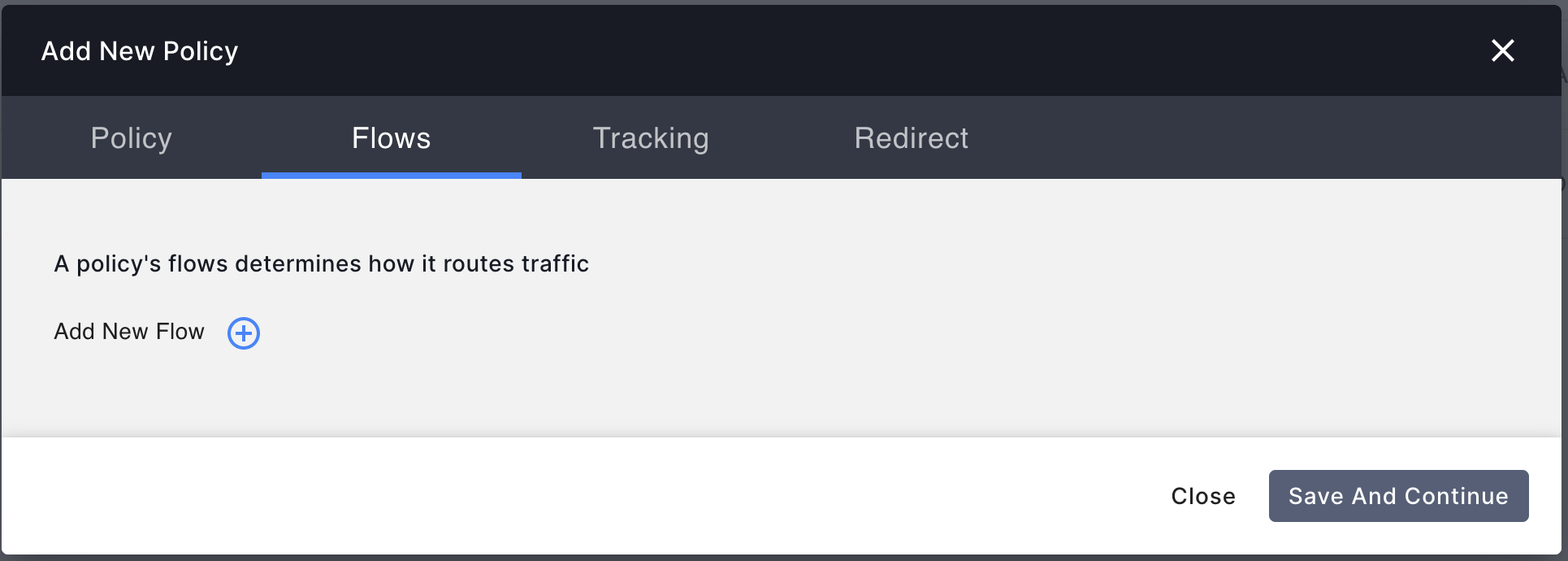 Flows Tab
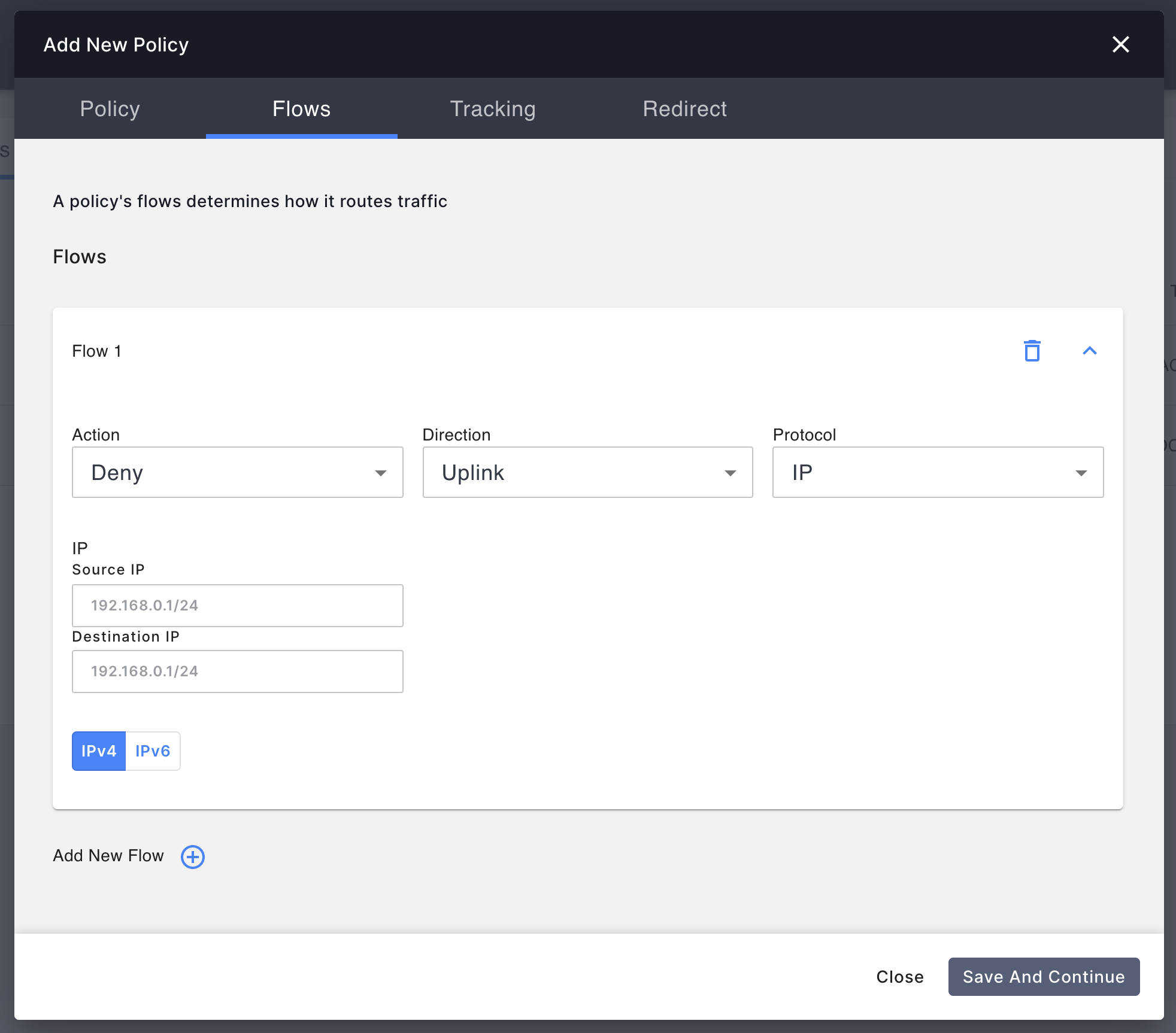 Flows Tab
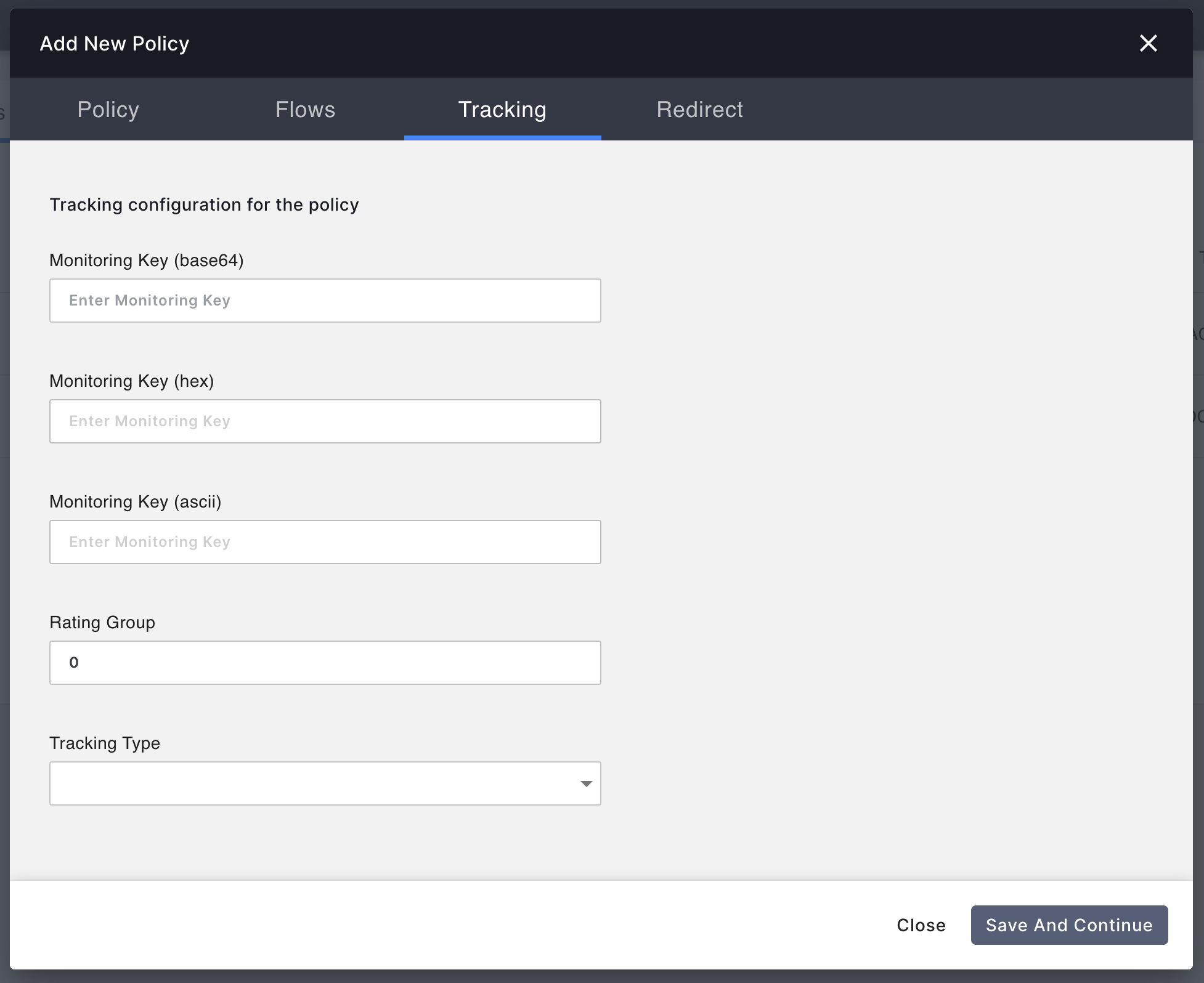 Tracking Tab
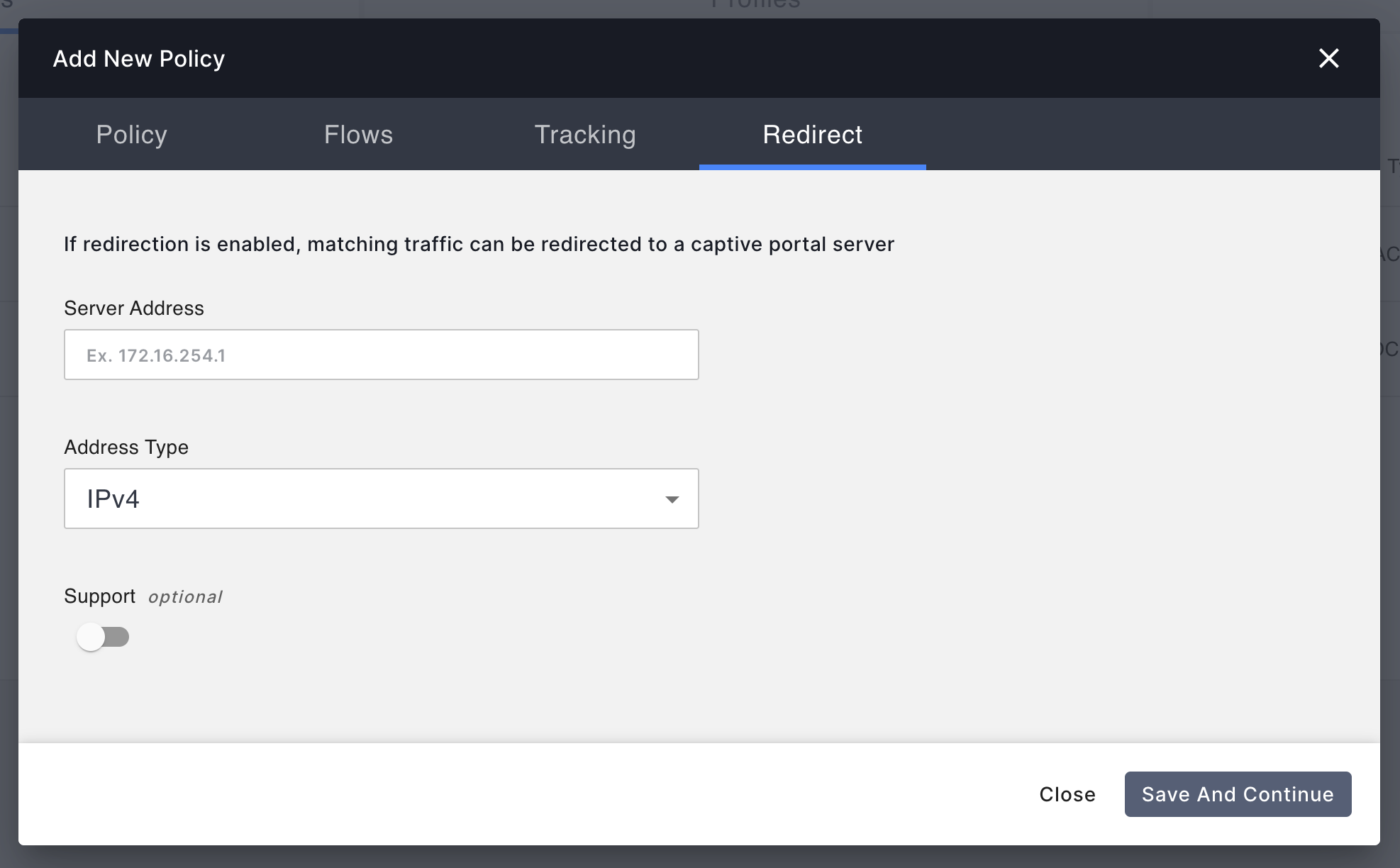 Redirect Tab
Adding a new Policy
The policy add button is available on the policy overview page.
The user can choose to create a new Policy, new Profiles or new Rating Groups.
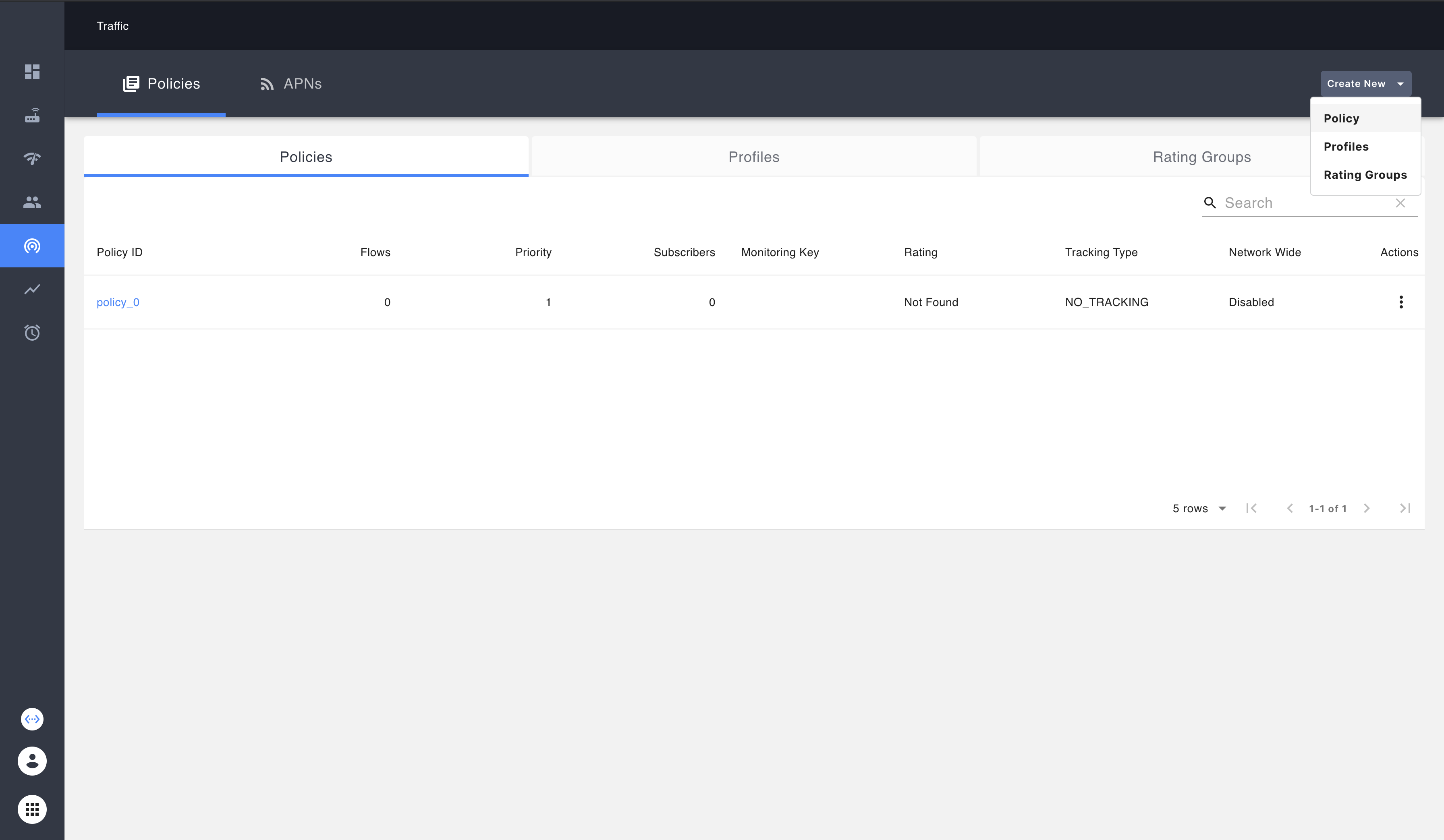
As the user clicks save and continue and proceeds to the next tab, the policy configuration will be persisted. The user can either choose to configure all parameters at once or skip and configure them at a later point of time by editing the configuration.
Editing an existing Policy
A Policy can be edited from the policy overview page.
To edit a Policy, the user can click on a policy ID.
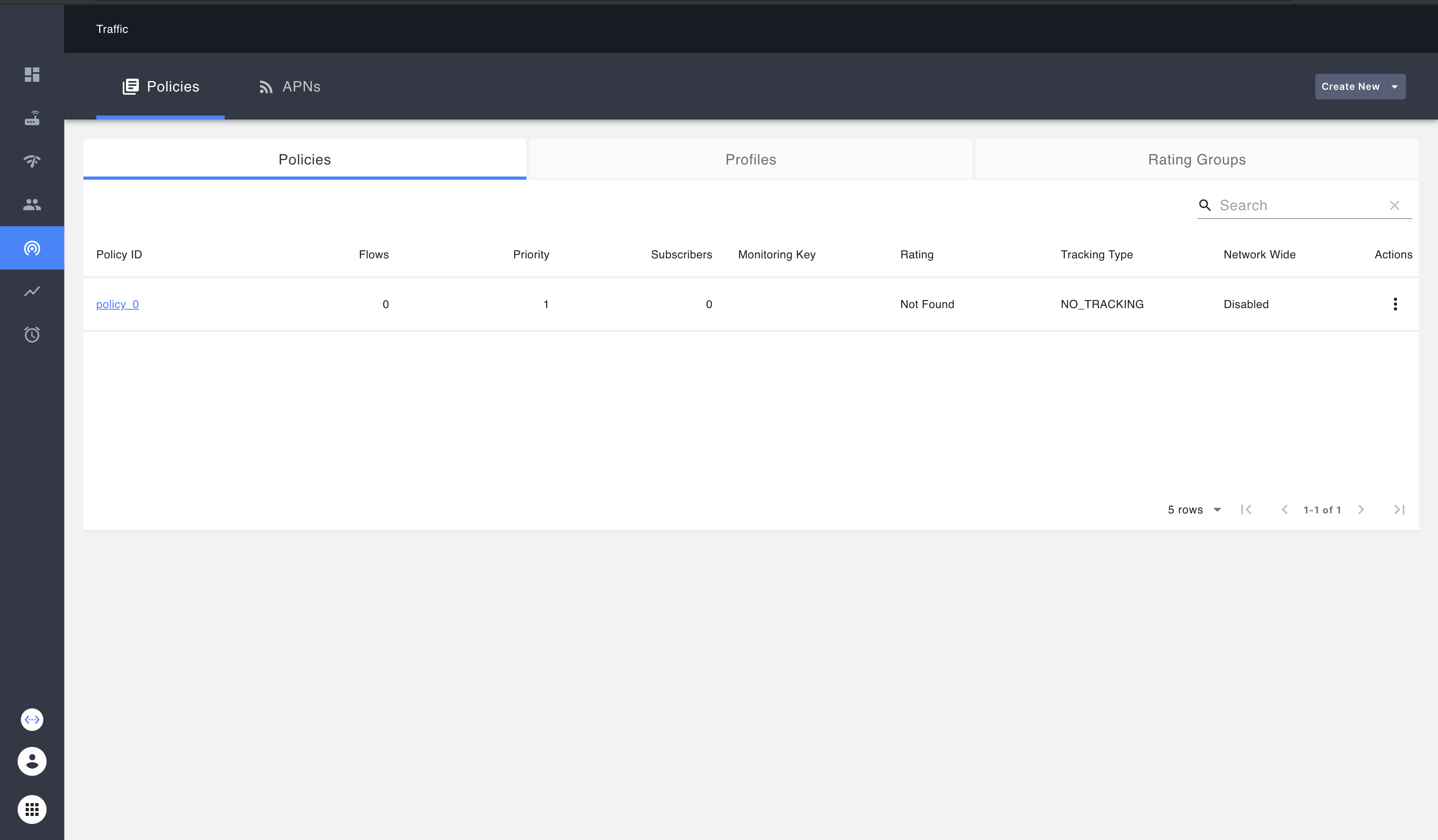
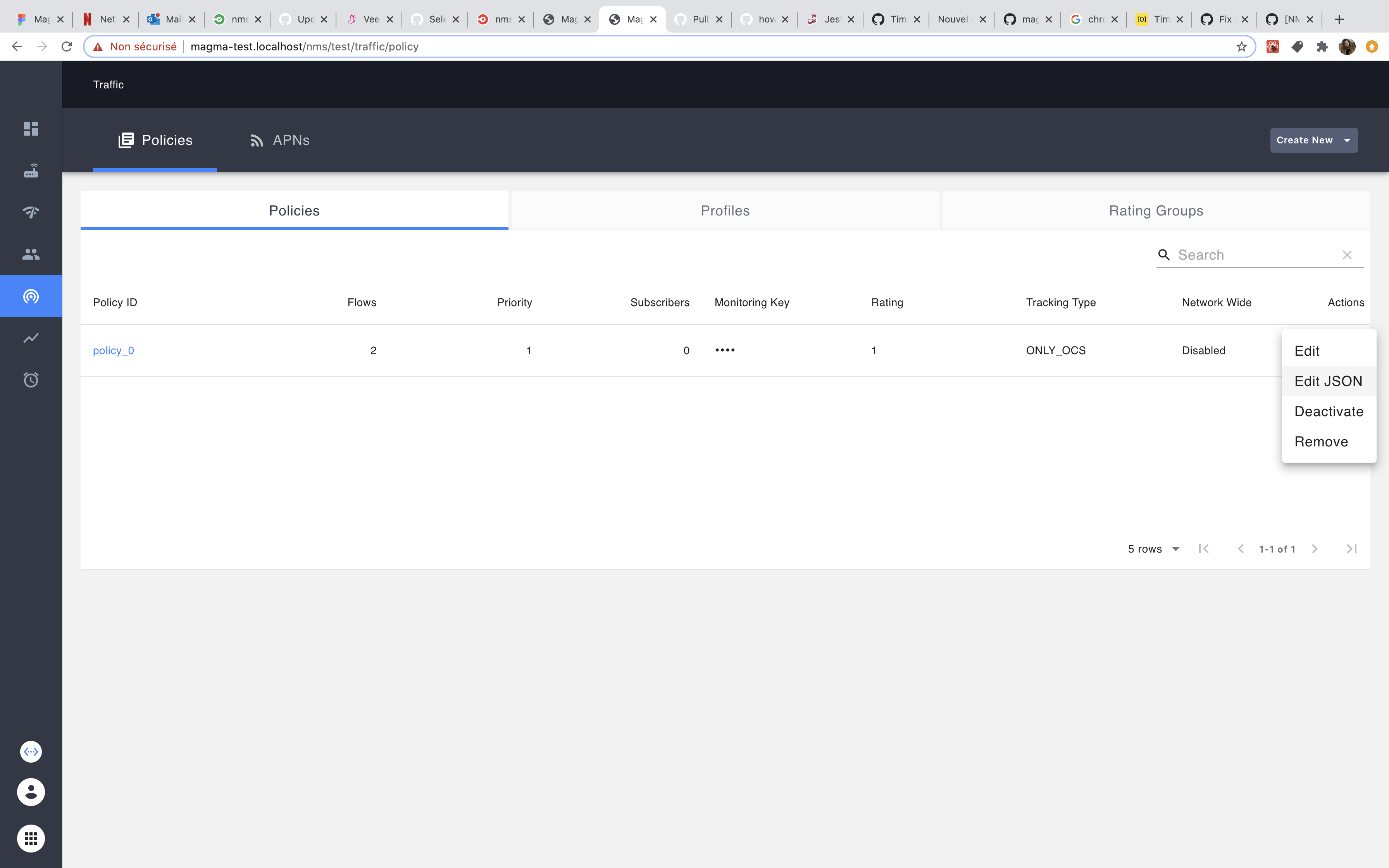
Users can select the edit action in the policy action menu.
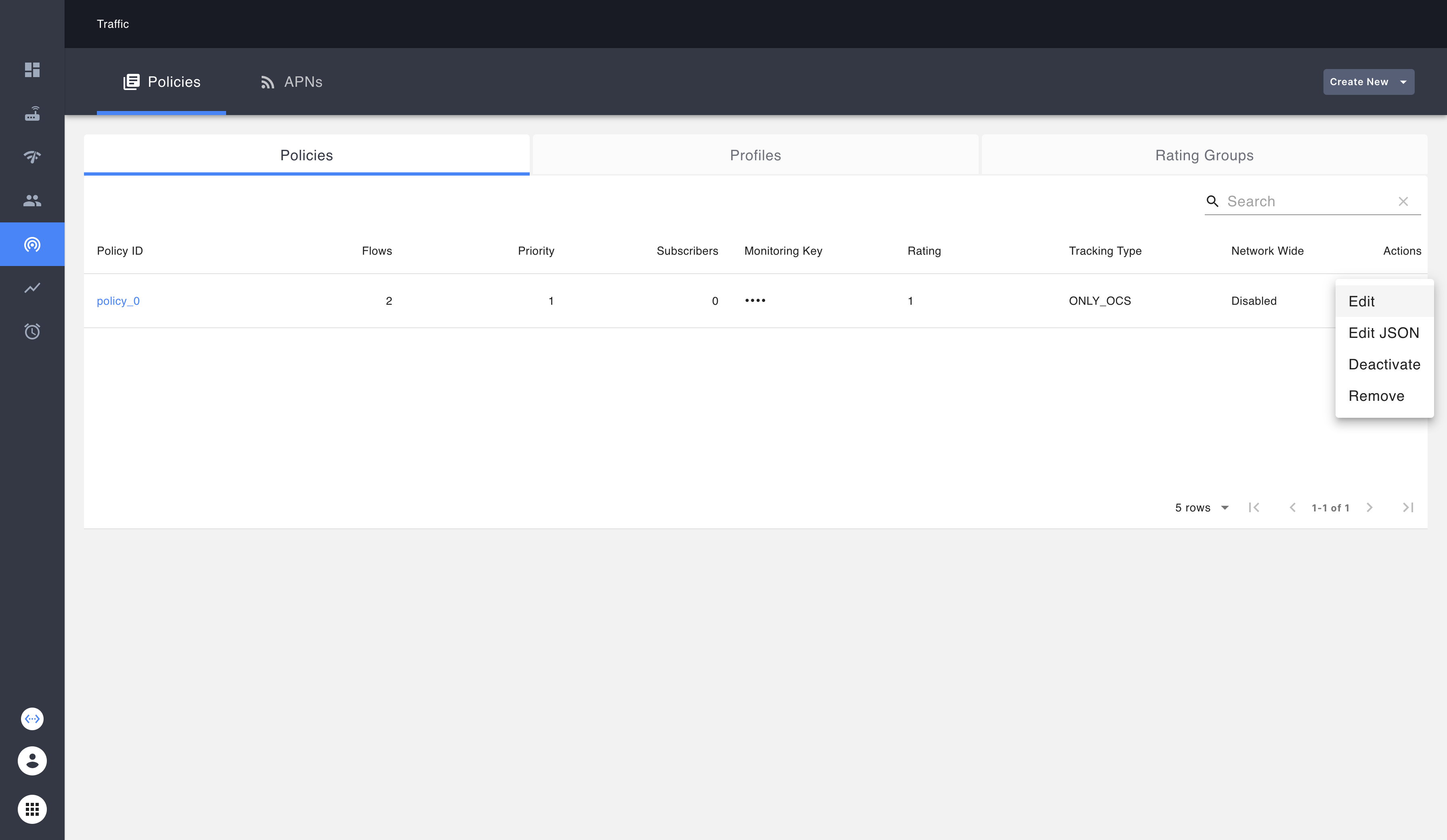
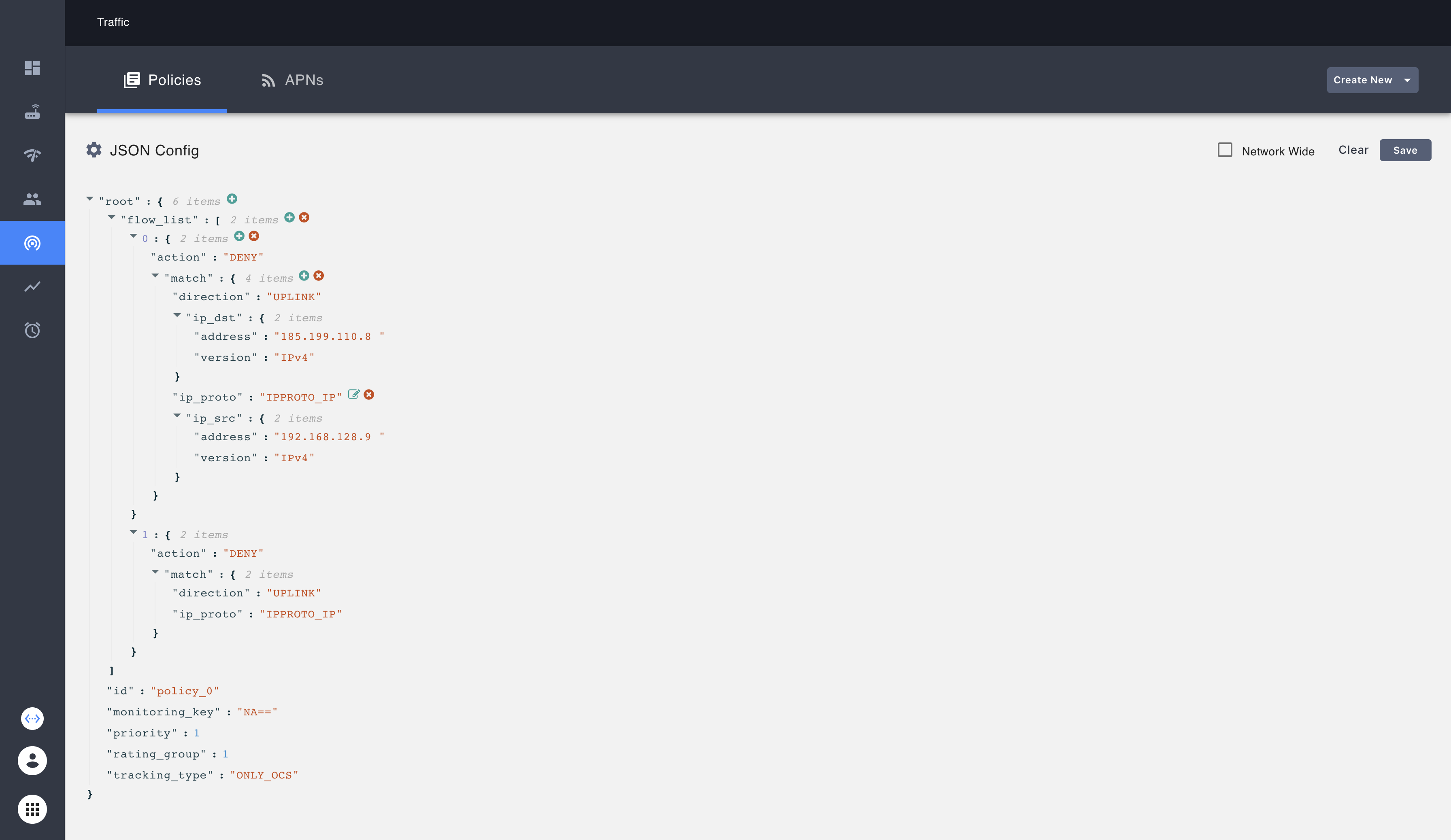
Users can also directly edit the JSON file and save the configuration.
Deleting a policy
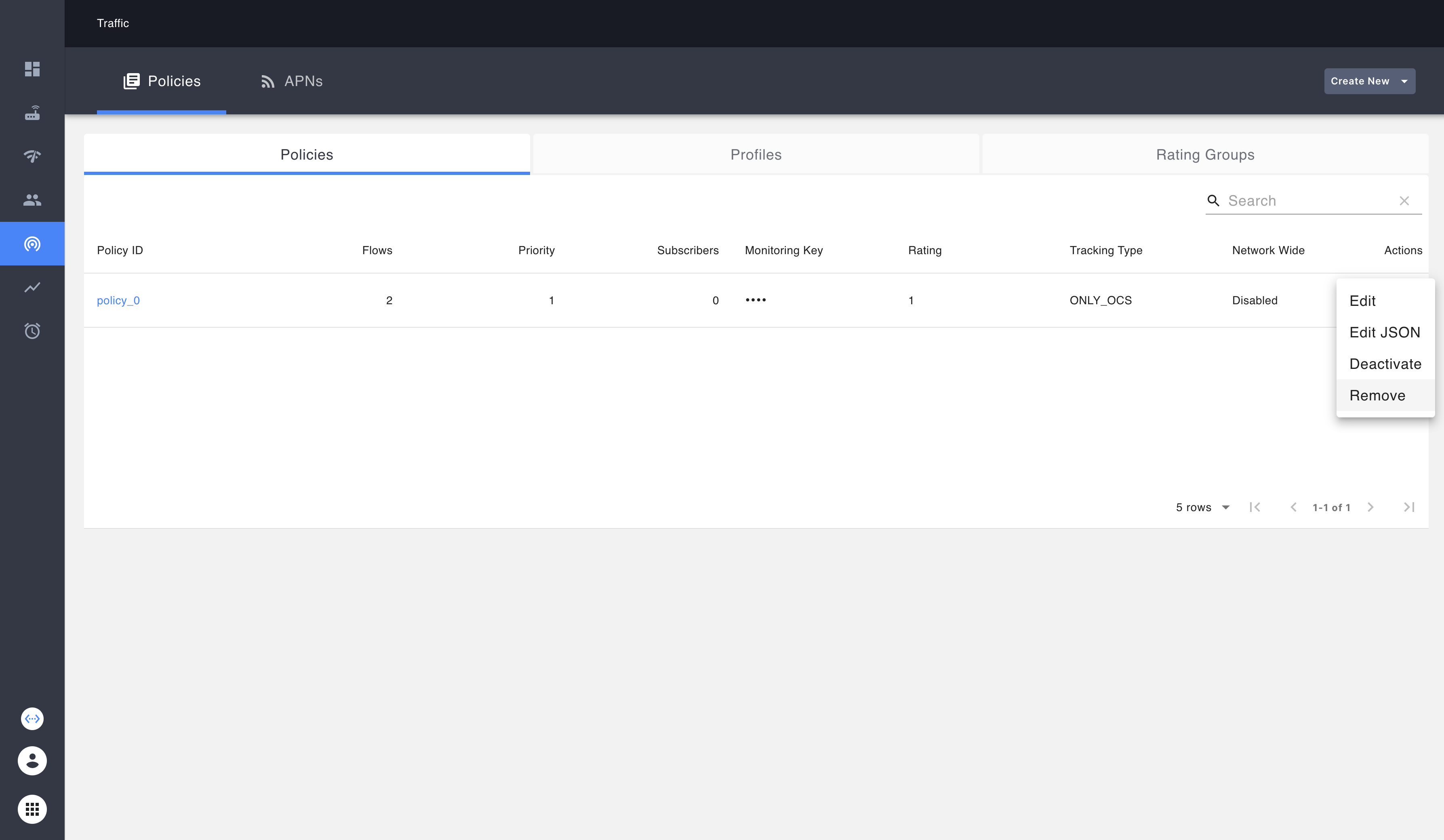
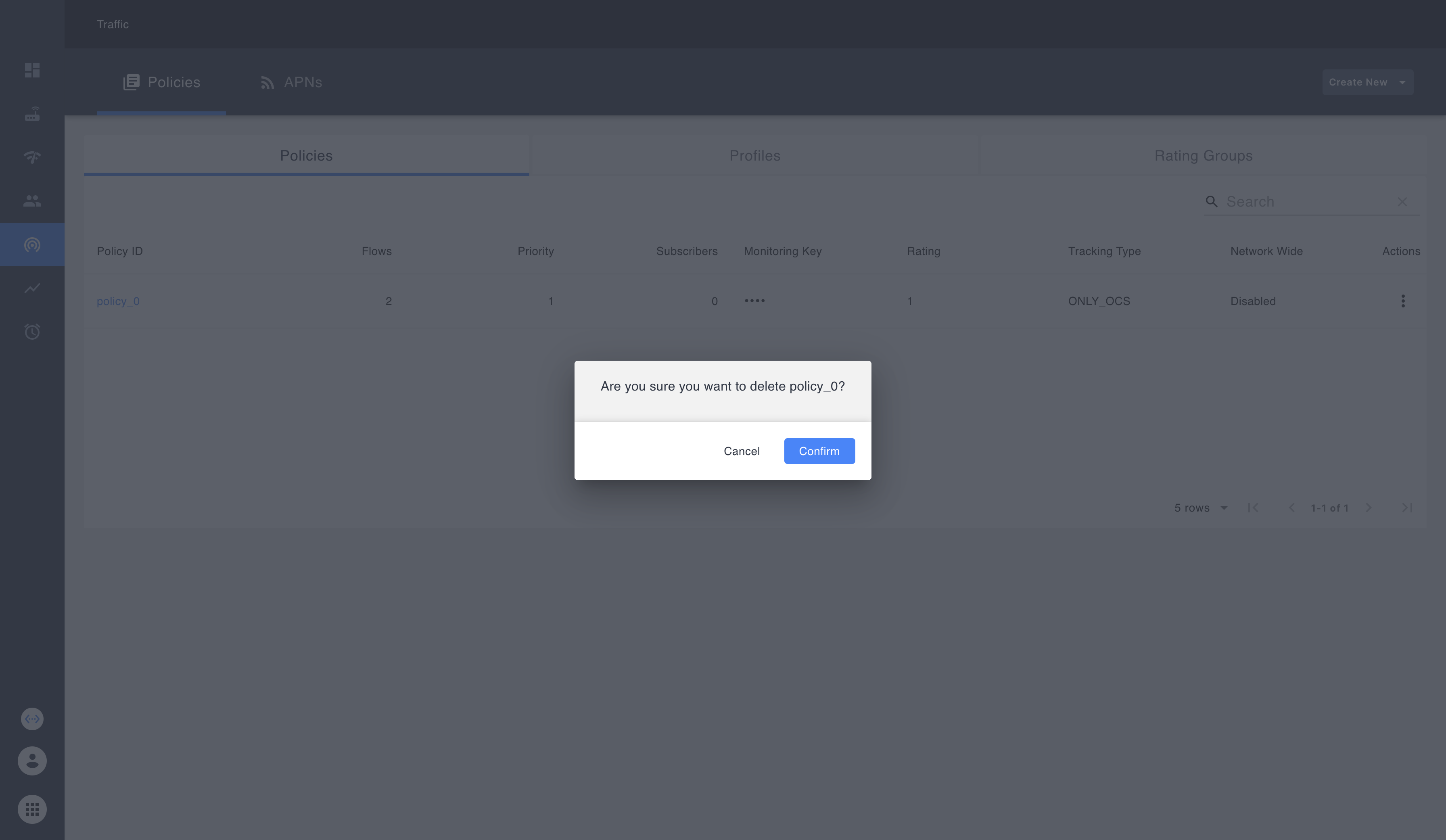
Policies can be deleted from the policy overview page as follows:
APN configuration
The same APN configuration dialog is used for 'add' as well as 'edit'. The dialog has 1 form to configure APN ID, Class ID, ARP Priority Level, Max Required Bandwidth and enable or disable ARP Pre-emption-Capability and ARP Pre-emption-Vulnerability.
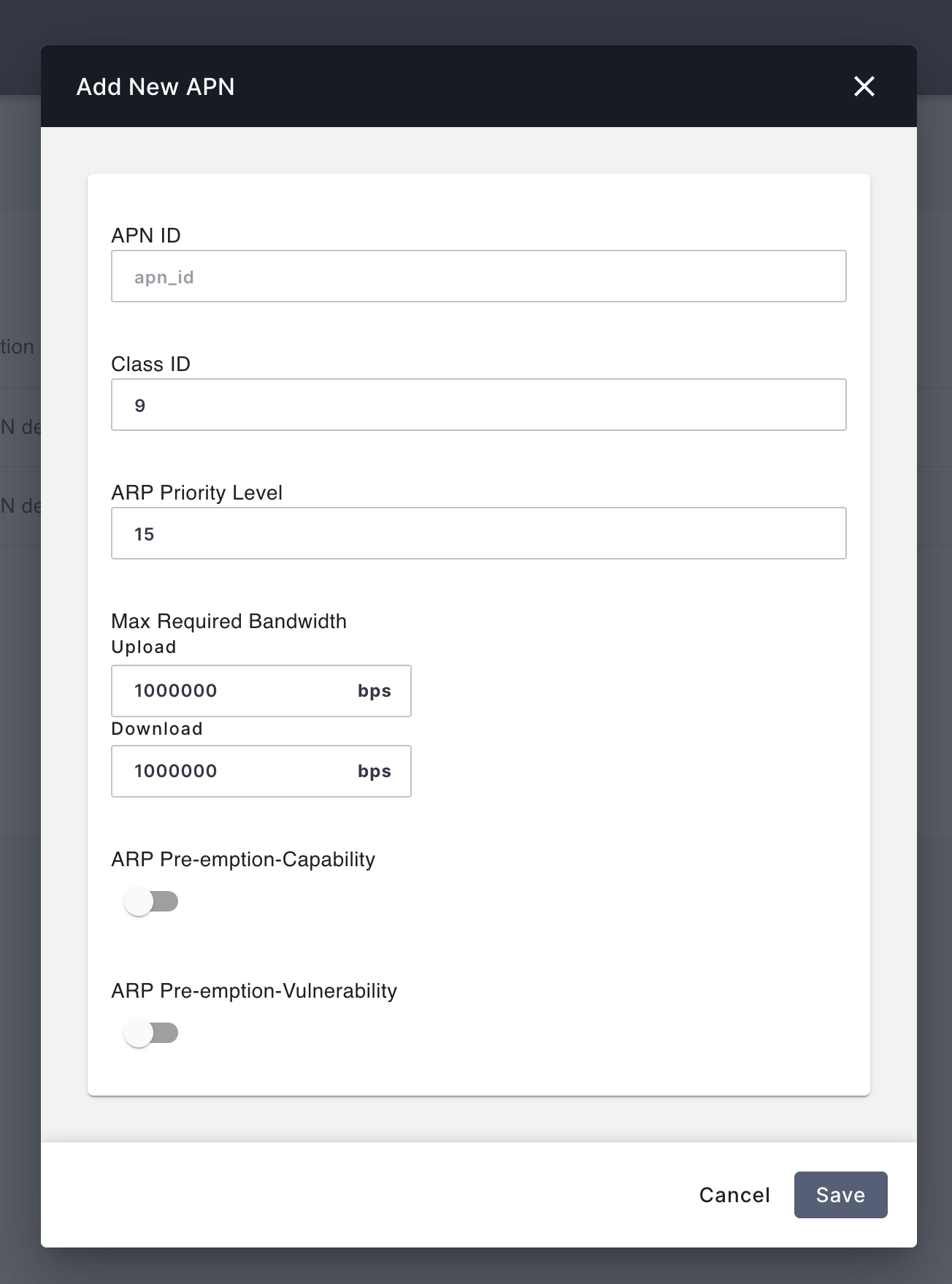
Adding a new APN
The APN add button is available on the APN overview page.
Editing an existing APN
An APN can be edited from the APN overview page.
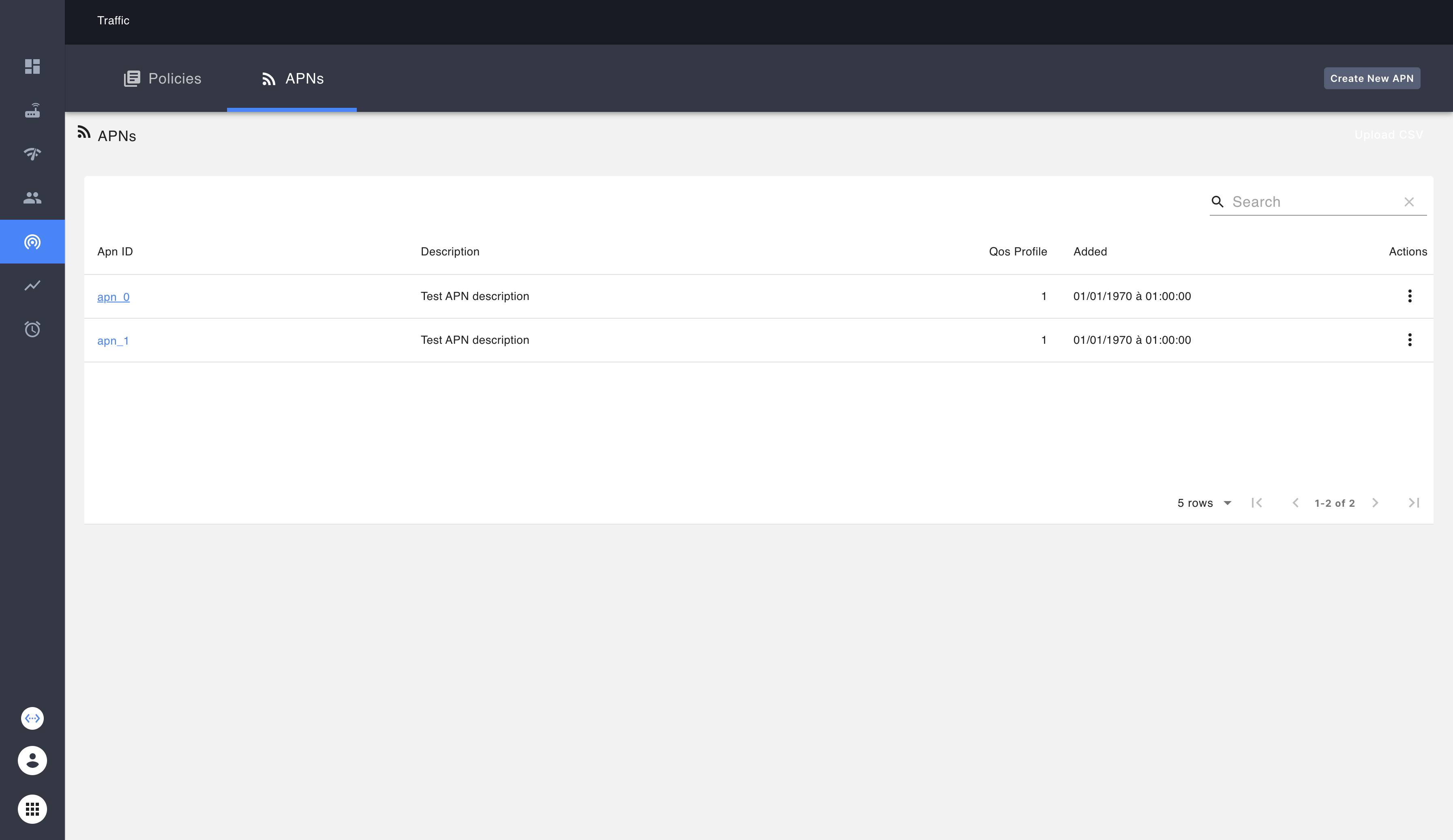
To edit an APN, the user can click on an APN ID.
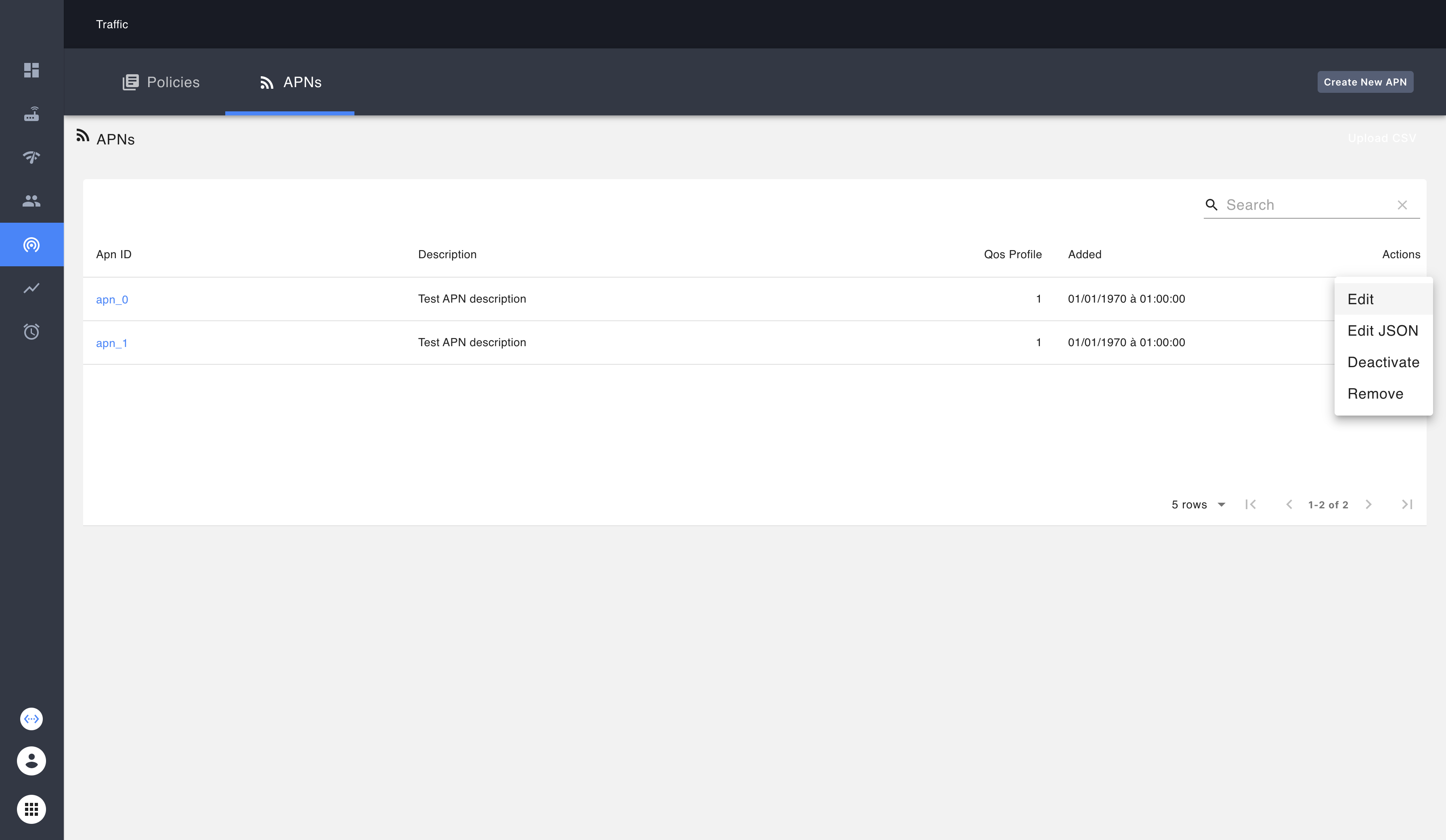
Users can select the edit action in the APN action menu.
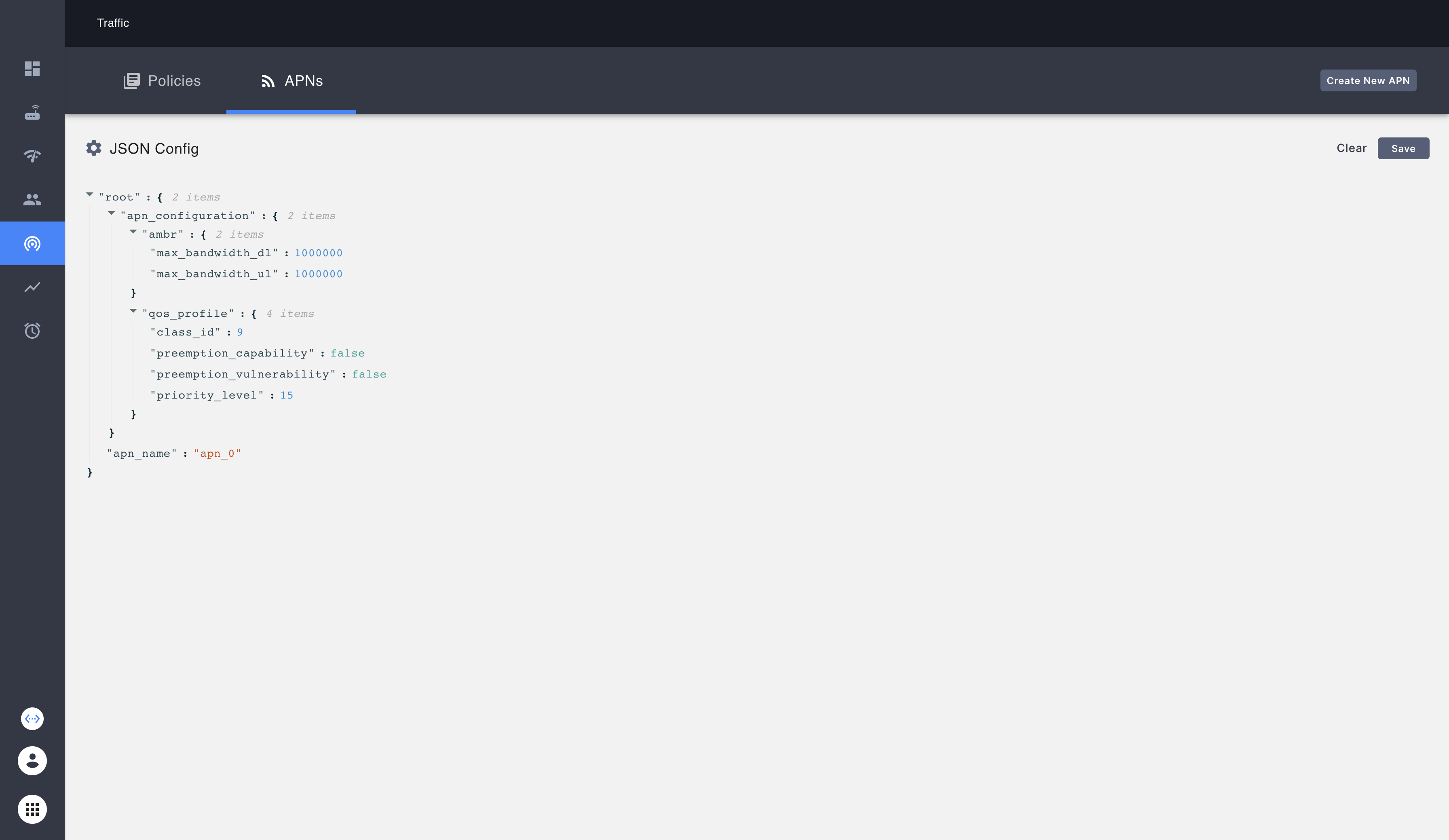
Users can also directly edit the JSON file and save the configuration.
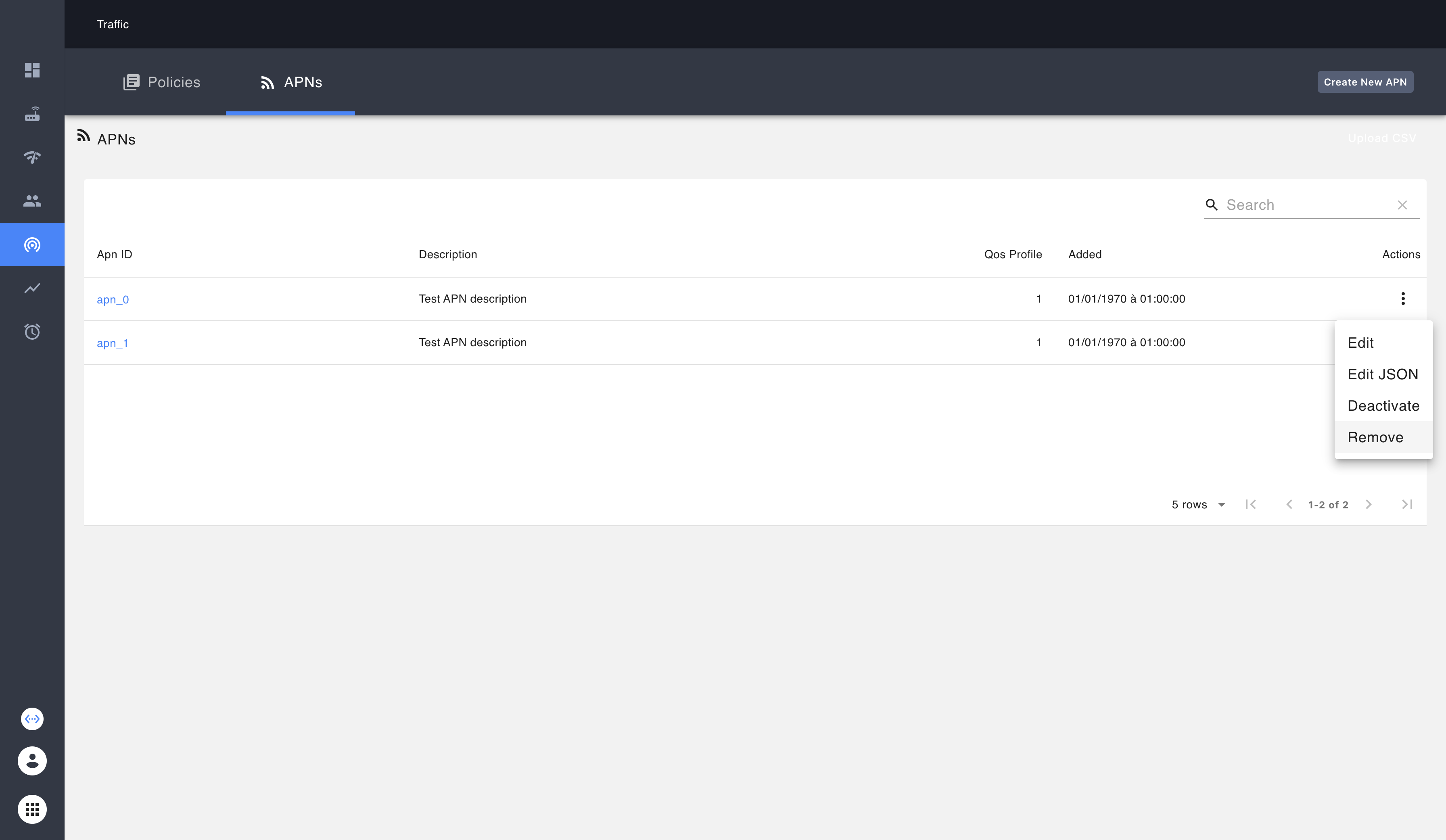
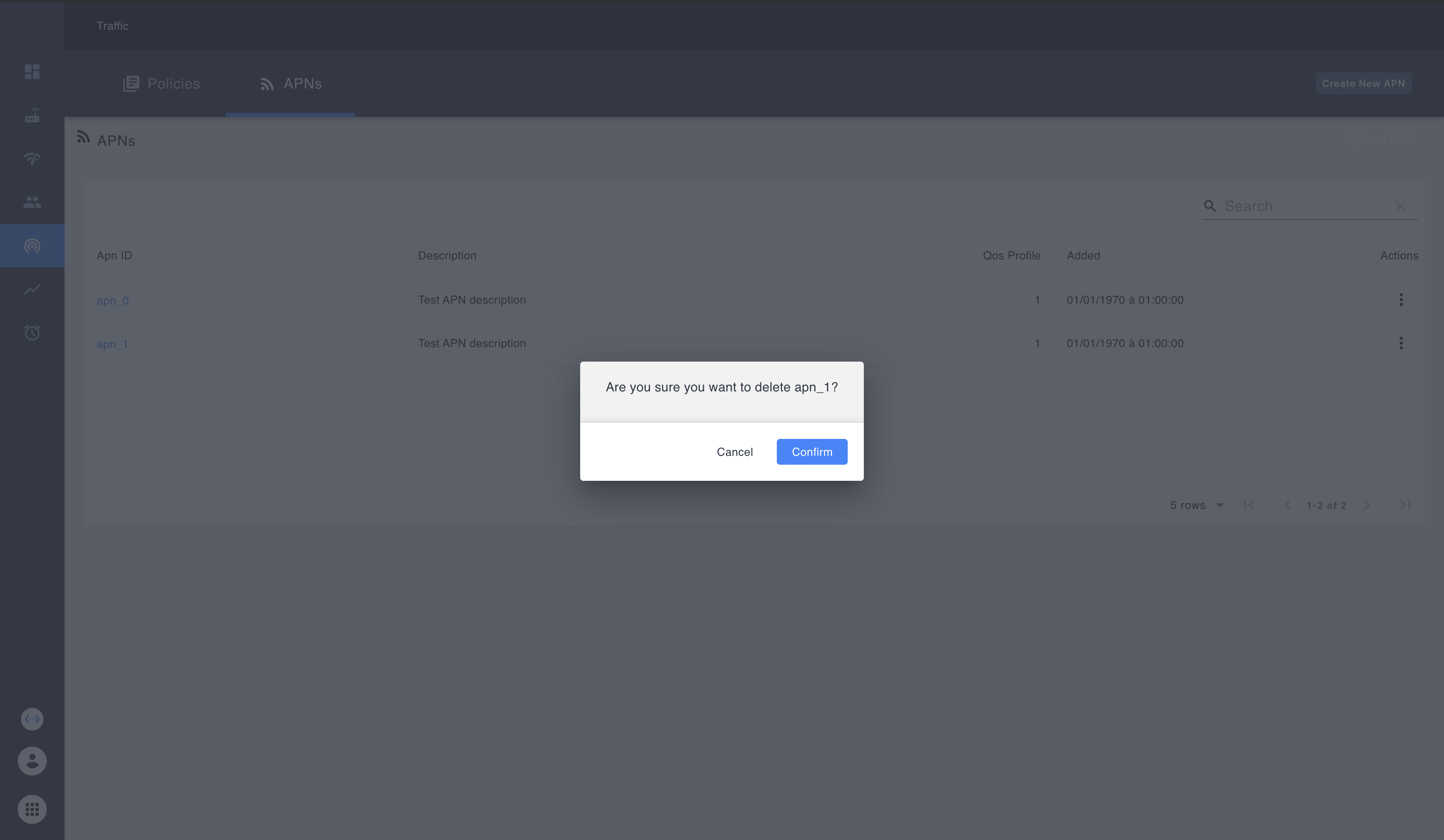
Deleting an APN
APNs can be deleted from the APN overview page as follows: